How space works in Run

Space in the Run series is kind of complicated, all because of a decision I made early on. See, I had a problem: how can I program a game where you run on the walls and ceiling? I’d made platformers before, but never anything where “up” could become “left” at a moment’s notice.

My answer was abstraction. I would program the physics exactly the way I was used to. The Runner would move around in her own little world where “up” means up and “down” means down. This meant I could focus on getting the running and jumping physics to feel just right. Then after those physics had run, I would use a mathematical formula to rotate everything by some multiple of 90°, depending on which wall the Runner was really on.

Well, kind of. The actual details varied from game to game, but the core guiding principle remained “I want the jump physics to be easy to program.” In Run 1 I took several shortcuts. By the time I got to Run 3 and Runaway, I was using 3D matrices to accurately convert between nested coordinate spaces.

Coordinate spaces

Cartesian coordinate systems use numbers to represent points. Coordinate spaces are when you’re using a coordinate system to represent physical space. They can be two dimensional, three dimensional, and even more. (Though I’m going to focus on 3D for obvious reasons.)

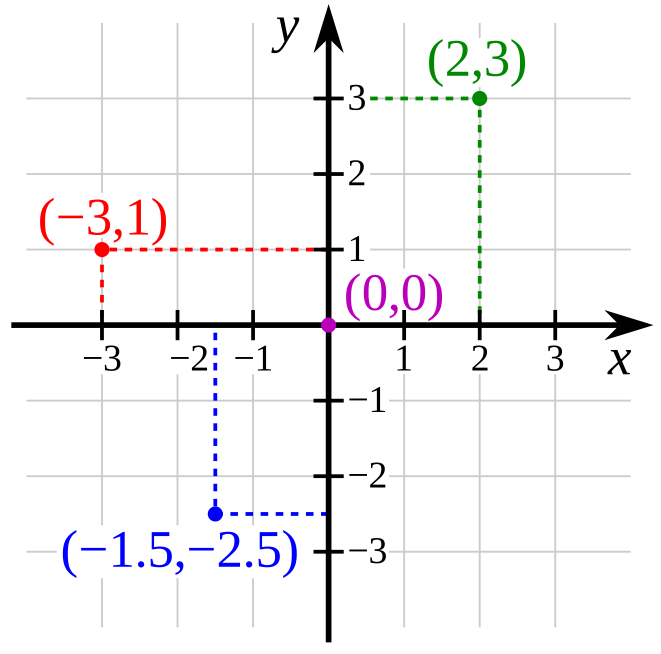
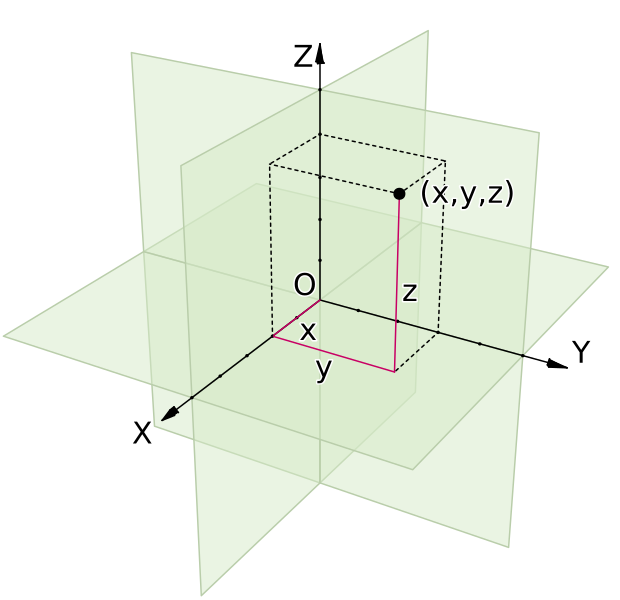
A 2D coordinate space, with four points labeledA 3D coordinate space, with one point labeled

Those right there are coordinate spaces. Both are defined by their origin (the center point) and the axes that pass through that origin. As the name implies, the origin acts as the starting point; everything in the space is relative to the origin. Then the axes determine distance and direction. By measuring along each axis in turn, you can place a point in space. For instance, (2, 3) means “2 units in the X direction and 3 units in the Y direction,” which is enough to precisely locate the green point.

Axis conventions

Oh right, each axis has a direction. The arrow on the axis points towards the positive numbers, and the other half of the axis is negative numbers. I like to use terms like “positive X” (or +X) and “negative Y” (or -Y) as shorthand for these directions.

By convention, the X axis goes left-to-right. In other words, -X is left, and +X is right.

The Y axis goes bottom-to-top in 2D, except that computer screens start in the top-left, so in computer graphics the Y axis goes top-to-bottom. I would guess that this stems from the old days when computers only displayed text. In English and similar languages, text starts in the top-left and goes down. The first line of text is above the second, and so on. It just made sense to keep that convention when they started doing fancier graphics.

In 3D, the Z axis is usually the one going bottom-to-top, while the Y axis goes “forwards,” or into the screen. Personally, I don’t like this convention. We have a perfectly good vertical axis; why change it all of a sudden?

In Runaway, I’ve chosen to stick with the convention established by 2D text and graphics. The X axis goes left-to-right, the Y axis goes top-to-bottom, and the Z axis goes forwards/into the screen. If I ever use Runaway for a 2D game, I want “left,” “right,” “up,” and “down” to mean the same things.

Not that it matters much. Runaway doesn’t actually enforce +Y meaning “down.” I wrote comments suggesting that it should, but because of the nature of the games I was building, I never hard-coded it. Instead, I coded ways to define your own custom coordinate spaces.

Rotated coordinate spaces

You know how different game engines can assign different meanings to different axes? Well in fact, each individual coordinate space can assign different meanings to different axes. In a single game, you can have one coordinate space where +Y means “down,” another where it means “up,” and a third where it means “forwards.”

This brings us back to Run. I wanted to program character motion in a single, consistent coordinate space. I wanted to be able to say “the left arrow key means move in the -X direction, and the right arrow key means move in the +X direction,” and be done with it. Time for a couple images to show what I mean.

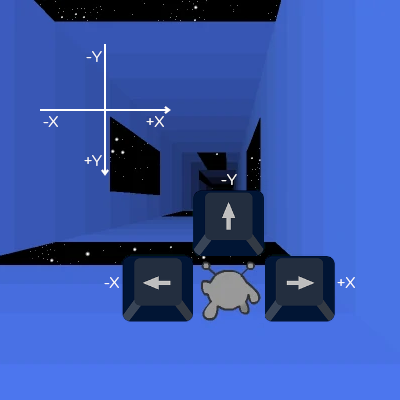
The Runner stands on the floor. There's a set of axes showing that -X is left, +X is right, and -Y is up, and a set of arrow keys showing the same.

Above is the basic case. You’re on the floor, and the arrow keys move you left, right, and up. If the game was this simple, I wouldn’t have anything to worry about.

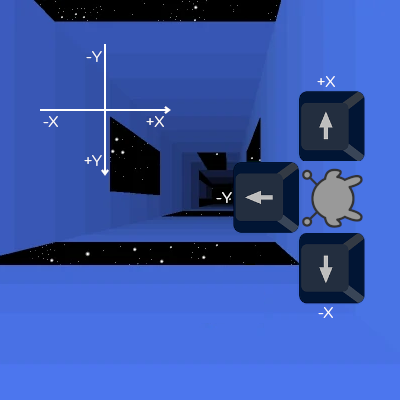
The Runner stands on the right wall. The axes still show that -X is left, +X is right, and -Y is up, but now the arrow keys show -X being down, +X being up, and -Y being left.

Once you touch a wall, the Runner’s frame of reference rotates. She now has a distinct coordinate space, rotated 90° from our perspective. She can move around this space just like before: left arrow key is -X, right arrow key is +X, and jump key is -Y. It works great, until she has to interact with the level.

In her own coordinate space, she’s at around (-1, 2, 5). (Assuming 1 unit ≈ 1 tile.) In other words, she’s a bit left of center (X = -1) on the floor (Y = 2) of the tunnel. But wait a minute! In the tunnel’s coordinate space, the floor has a wide gap coming up quick. If the Runner continues like this, she’ll fall through! That can’t be right.

To fix this, we need to convert between the two coordinate spaces. We need to rotate the Runner’s coordinates 90° so that they match the tunnel’s coordinates, and then check what tiles she’s standing on. We end up with (2, 1, 5) – a bit below center (Y = 1) on the right wall (X = 2) of the tunnel. That wall doesn’t have a gap coming up, so she won’t have to jump just yet. Much better.

I have other use cases to get into, one of which is something I’m still working on and prompted this blog post. But I’ve spent long enough on this post, and I really should get back to the code. Perhaps next week.

How much content does infinite mode have?

Ah, procedural generation. The easiest way to add replay value to a game. Or is it?

Let’s talk about content and replay value, two vague but still useful measures of entertainment. (Note: Richard Stallman published a style guide telling everyone to stop calling artistic works “content.” This isn’t really important or relevant, I just find it amusing.)

The term “content” applies to most forms of online entertainment – games, movies, comics, art, and so on. The term “replay value” obviously only applies to games, because there really isn’t the same concept in other media. Sure, you can replay a video, and people do, but not as much and not for the same reasons.

Disclaimer: this post involves a lot of personal opinion and personal experience, moreso than usual.

Defining “content”

“Content” is a measure of something, but… what? (tl;dr at bottom)

Take YouTube videos. Those are widely agreed to be “content,” but does one video equal one content? No: a hundred 5-second videos aren’t a hundred times more content than a single long video. But it isn’t video length, either. A boring hour-long livestream can feel like less content than a few minutes’ worth of 5-second videos. It seems to be a combination of video count, length, level of detail, entertainment value, and (I would argue) release schedule. We’re more likely to refer to someone as a “content creator” if they release videos at semi-regular intervals.

In video games, all kinds of things count as content. Levels, characters, weapons, items, enemies, you name it. If players are excited to see more of a thing in the next update, they’ll probably call it “content.” (You may note the two media are slightly different – a YouTube video is a single indivisible piece of content, while a game is made up of many pieces of content. But I see that as an artifact of the medium. You can’t extend or modify YouTube videos after uploading, so we don’t talk about them in those terms.)

Games receive “content updates” from time to time, and one of the things players talk about is the size of these updates. The more changes made, the bigger the update. But “changes made” isn’t the metric being used. I’ve released content updates that took ages to make and still felt disappointingly small because players breezed through the levels in 15 minutes.

So… time spent? The more time you spend, the more content in a game? Well no. If that were true, idle games would have more content than any other game, followed by super-grindy RPGs. But we never talk about grinding as content; in fact, it’s almost antithetical. Idle games do have content, but the “content” comes in between grinding. When you unlock a new item or upgrade or whatever the game involves, there’s a period of adjustment, where you’re exploring the new possibilities. You have to figure out how to use this new thing effectively, and when you start to figure that out, you settle into your new grinding routine. Each new thing that makes you think is a piece of content.

So… is “making you think” the definition of content? Not quite, but it’s a lot closer.

tl;dr: I’d say the act of exploration – either literally exploring an area or figuratively exploring the possibilities of a game mechanic – is what defines content. The more time you spend exploring, the more content there is.

Defining “replay value”

Replay value is how many times you can replay a game (or part of a game) without feeling like you’re grinding. There are still some challenges to be had and discoveries to be made, even if you’ve already seen each location, item, and upgrade at least once.

At least, that’s the definition I’ll use here. Note that by this definition, replay value is a type of content. (In fact, I’m going to use the terms semi-interchangeably.) Either way, you’re exploring the game’s possibilities, and you aren’t grinding.

Defining “grinding”

Grinding is the act of replaying a game (or a section of a game) that you already thoroughly understand. It’s all about repetition and execution – you’re going to do this thing over and over again until you achieve some kind of goal.

When you fight weak enemies in an RPG to gain experience, that’s grinding. A particularly boring type of grinding, and hardly the only type. You can also grind an obstacle course, with the goal of eventually beating it. You can grind for resources by combing back and forth over the areas they most commonly appear. In rare cases, even a boss fight – supposedly the most exciting part of a game – can end up being a grind if the fight is slow or depends on randomness.

Speedrunning is (IMO) the most exciting form of grinding. Speedrunners will practice their maneuvers over and over to build muscle memory, and then spend even more time attempting full speedruns until everything comes together and they pull off all the tricks in a row. It’s a spectacular end result made possible only by replaying a game for hours, days, weeks, months, even years past the “replay value” stage. The speedrunner already found/did everything the developers intended them to find/do (content and replay value), and decided to press onwards (grinding).

To be fair, speedrunners also spend a fair amount of time experimenting, hunting for exploitable bugs and faster routes. This is a sort of exploration, not grinding, so it counts as content. It’s just content the developers didn’t intend to add.

Infinite Mode

Now that I’ve given my definitions, on to the two “infinite” modes. Both Run and Run 3 have a mode by this name, and though they’re different, I built them with the same goal: use randomness to add replay value.

Run 1’s Infinite Mode is simple. Each level is a random scattering of tiles. Not fully random – there’s a bias towards clumping together – but close enough. This produces a practically endless number of levels, but not an endless amount of content. Once you’re good enough to beat the highest difficulty, it takes only a few more run-throughs before you get used to everything the mode has to offer, and “replaying” becomes “grinding.” Ultimately, there isn’t a whole lot of content here.

In Run 3, the mode contains over 300 pre-made levels, which you encounter in a mostly-random order. This provides a much more varied experience, with each level having a distinct style and challenge. This is, unambiguously, a lot of content, and all it took was making 300+ levels by hand. Then there are a bunch of achievements that give bonus cash if you can beat levels in unusual ways, and upgrades to be purchased with this cash, and post-run statistics that provide tidbits of information on how you did. All this creates a much more replayable mode… in theory.

In practice, most of that stuff is for grinding, and therefore doesn’t count as “content” by my definition. The main culprit are the shop prices, some of which are astronomical. You’ll still be grinding for the Angel long past when you’ve seen most of the levels. This isn’t great design, and I know that, but in my defense, it’s supposed to be temporary.

Which brings us to the future of the two modes. In short, I want to add more content to both of them, building off what already exists. I want Run 1 to generate more interesting levels, and I want to make better use of Run 3’s existing 300+ levels.

The future of Infinite Mode in Run 1

For this mode, I want to start employing patterns. So many of my hand-made levels were made by creating a simple pattern, then repeating it. It shouldn’t be hard for a computer to do the same, even if it won’t do as good a job.

On top of that, adding an option to share random seeds will instantly increase add replay value. Not by adding new levels or anything; that’s what the patterns are for. No, seeds will make the existing levels more interesting to explore. Now you have more reason to pay attention to little details, because if you find an interesting randomly-generated level, you can save it for later and share it with friends.

For those out of the loop, computers rarely use truly-random numbers. Instead, they use complicated and unpredictable patterns to simulate true randomness. The mathematics are complicated, but all you really need to understand is they start with a seed: a single number serving as a starting point. And each time you start with the same seed, you’ll get the same “random” values in the same order. That would make Infinite Mode generate the same levels in the same order, down to the tile.

Well, kind of. Infinite Mode’s levels are based on two factors: randomness and difficulty. Difficulty is constantly changing based on the player’s performance, not based on the seed. You’d only get the same levels if the difficulty value happened to be the same. Fortunately, once you unlock a difficulty, you can go back and replay lower difficulties to see what you missed.

I think this will matter most to speedrunners. Now instead of each level being its own self-contained challenge, you’re playing a set of 100 connected levels, and you know them all in advance. You have to beat only about 10% of them, and the trick is to pick the easiest and fastest ones. So say you just beat difficulty 35 and jumped to 45, but you already know that 45 is annoying and inconvenient. You might choose to fall back to 44 and play that instead, even though that reduces your progress by 1 overall. That’s 100 levels’ worth of possibilities to explore, with almost no extra effort on my part.

tl;dr: I want to generate slightly better levels, and provide a way to replay ones you like. Both would add a modest amount of replay value.

The future of Infinite Mode in Run 3

I have multiple plans for this mode. I want to make the levels more interesting in and of themselves. I want to expand the upgrade system, including upgrades to income (so the Angel doesn’t take so ridiculously long). I want to arrange the levels in more interesting ways, with occasional choice points. I want more risk-reward tradeoffs.

I plan to make the levels more interesting by adding, removing, or moving tiles. The same sort of thing that Run 1 does, except less random. This doesn’t add much new content, as the levels will be mostly the same, but it’ll keep players from getting complacent.

Everything else – upgrades, choice points, tradeoffs – will be bona fide new content, and will take a lot of effort to design. Each will introduce new strategic choices, at different levels of gameplay. Tradeoffs happen in the moment, and you succeed or fail after a few seconds. At a choice point, you commit to a branch of the tunnel, and that branch determines the next several levels. It’s a higher-level decision with longer-lasting consequences. Upgrades happen before you even set out, and affect an entire run, creating some meta-level gameplay where you decide what to bring.

Each higher-level decision will affect the lower-level ones, creating more possibilities to explore. As an example, suppose one of the upgrades is a flashlight. If you bring that along, you might feel more comfortable venturing into a low-power branch of the tunnel, because you’d still be able to see a little. But then once you’re there you come across a long-jump challenge, and you decide not to attempt the jump because the flashlight doesn’t reach that far. Instead you go around and pass up that reward. If only you’d brought a mobility upgrade in place of the flashlight… but in that case would you have risked coming to the low-power branch?

tl;dr: There’s still a lot of potential to spice up Run 3’s Infinite Mode, and I plan to do it by adding game mechanics. Adding a few more levels won’t make much difference, but new mechanics will add replay value to all 300+ levels simultaneously.

What is Runaway?

I’ve been working on Runaway since (at least) 2019, and talking about it in vague terms for about that long. But what is Runaway, really?

Before getting started, let’s clear up some terminology. Runaway is a game engine, named after Run (the game series) and Away3D (the 3D rendering library). The Runway is a tunnel in Run 3 that hasn’t been released. Despite the similar names, there’s no connection.

Overview of Runaway

A game engine is a collection of code designed to help people write games. You may have heard of engines such as Unity, Unreal, or GameMaker. Haxe – the language I named this blog after – has engines such as HaxeFlixel, HaxePunk, and/or Armory. All of these are designed to serve as a solid foundation for making games, saving you the time of re-writing your physics and rendering code each time.

Which is an odd thing for me to worry about, since I’ve never been afraid to re-write my physics and rendering code, or anything else really. Each game in the Run series was re-written from the ground up, and Runaway is its own ground-up rewrite. Though it’s taken years, I’ve learned a lot each time, and I’m building Runaway because I finally feel ready to build a standalone game engine, separate from the games themselves.

Entity-component-systems

So what sets Runaway apart from all the other engines? The big difference is, it uses an entity-component-system model. This model isn’t strictly better or worse than conventional engines, but to me it feels more elegant. (And if I’m being honest, the aesthetics are what won me over.) Practically speaking, the model lends itself to loose coupling, meaning Runaway should be especially versatile.

As the name implies, there are three important pieces here:

  • Entities are, you know, things. They can be anything from the tangible (characters, obstacles, items) to the vague (load triggers, score trackers), depending on what components they have.
  • Components are properties of entities. Things like position, size, shape, AI, abilities, and appearance. Each component is a small piece of data, and entities can have as many as needed. Note that components are nothing but passive data storage. They don’t act or update on their own.
  • Systems run the actual code that updates entities and components. Each system looks for a certain set of components, and updates only the entities with that set.

That’s the magic of the ECS model: what you are (an entity’s components) determines what you do (a system’s code).

Alice and Bob

Let’s walk through an example to see this in action.

var alice = new Entity();
var bob = new Entity();

Right now, Alice and Bob have nothing but a unique ID (Alice is 0 and Bob is 1). They aren’t characters yet. I’d describe them as “floating in a void”, but they can’t even do that because they don’t have positions. Let’s fix that.

alice.add(new Position(0, 0, 0));
bob.add(new Position(5, 0, 0));

Now that we gave them Position components, they’re floating in an endless void, doing nothing. How about a race?

alice.add(new Velocity(0, 0, 0));
alice.add(new Acceleration(0, 0, 1));
bob.add(new Velocity(0, 0, 10));

With the addition of new components, they immediately spring into action! Bob takes a commanding lead, at a speed of 10 units per second. Alice, meanwhile, accelerates slowly at 1 unit per second. Even after 5 seconds, she’s only moving at half Bob’s speed and has traveled only 12.5 units, compared to Bob’s 50. Bob will continue to widen the gap between them over the next several seconds, but his speed is fixed. As Alice continues to accelerate, it’s only a matter of time before she overtakes him.

But where is the code for this? Alice and Bob’s positions are changing every frame, even though Position, Velocity, and Acceleration components are nothing but data. It’s because Runaway has a class called MotionSystem, that was waiting all this time for these components to show up.

class MotionSystem extends System {
    @:update private function accelerate(acceleration:Acceleration, velocity:Velocity, time:Float):Void {
        velocity.x += acceleration.x * time;
        velocity.y += acceleration.y * time;
        velocity.z += acceleration.z * time;
    }
    
    @:update private function move(velocity:Velocity, position:Position, time:Float):Void {
        position.x += velocity.x * time;
        position.y += velocity.y * time;
        position.z += velocity.z * time;
    }
}

For those unfamiliar with Haxe, these are two “functions” named accelerate and move. The accelerate function takes three “arguments”: acceleration, velocity, and time, and it modifies velocity. The move function takes velocity, position, and time as arguments, and it modifies position.

Because these functions are marked @:update, they will automatically run once per entity per frame, but only if the entity in question has the correct components. Ignore time (it’s always available), but the other arguments must match. That means having a Position component isn’t enough, because move also requires Velocity. (Just Velocity wouldn’t be enough either.)

Now that Alice and Bob have both components, the move function automatically updates Position each frame. Alice also has an Acceleration component, so she meets the criteria for the accelerate function, and therefore accelerates as well.

While the physics described here aren’t anything impressive, the important thing to notice is how easy it is to add (or not add) functionality to an entity. Acceleration is baked into most physics engines, but in Runaway, it’s totally optional.

This is why I consider Runaway to be flexible. I can write extremely specific code, tailored to all kinds of specific situations, and then pick and choose which to apply to which entity.

Runaway’s current status

As of 2021, Runaway is being used in a single game: Run 1’s HTML5 port. It has all the features needed for that simple game, and a few more, but it’s also missing things I’ll need going forwards.

One of the improvements I need to make is the loading system. The current system requires pre-determined levels, such as the 50 levels in Run 1. But Infinite Mode generates levels on the fly, with difficulty based on your performance in the previous level, and that requires something more flexible.

I do hope to release the engine at some point, just not for a while. First I want to complete multiple games, including at least one not in the Run series, to be sure it’s stable and versatile enough to compete with the existing engines.

Status update: summer 2021

Lately, I’ve been focusing on low-level engine changes, such as “how things get loaded.” I’m building Runaway (the engine) to be as general as possible, with an eye towards reusing it in future games, and perhaps also releasing it. (Though I realize there are more than enough game engines out there already.)

When I finish the loading code, my next target will be restoring Infinite Mode to Run 1. The currently-released load system prepares levels well in advance, but in Infinite Mode, each level is generated based on your performance in the previous one, so I need to be able to fine-tune loading.

After that, my plans include, in no particular order:

  • Some quick gameplay changes for Run 1.
  • Some not-so-quick animation changes for Run 1.
  • Rewriting Run 2 for Runaway, which hopefully shouldn’t take long.
  • Rewriting Run 3/Run Mobile for Runaway, which is going to take a while but still needs to be done by November. Fingers crossed!

Capitalization in Run 3

I recently changed a tunnel’s name from “Low-power Tunnel” to “Low-Power Tunnel.” It’s a small change, but it still broke a whole bunch of links to the wiki.

So why did I even bother? Well, I wanted to get it right, based on real-world rules. Even though it’s a purely fictional universe, capitalization in Run 3 still has rules.

Now, I’d like to take some time to talk about what the rules actually are.

Title Case

Most names in Run 3 use title case, including tunnel names, cutscene names, and achievement names. That means that all the “major” words are capitalized, and there’s only a short list of words that aren’t.

There’s a fair amount of disagreement over the exact details of title case, so I did my best to find the “average” rules. Conveniently, Wikipedia’s rules are almost exactly average.

Well… except for one thing. Most style guides prefer to capitalize letters, and Wikipedia doesn’t. Since I’m trying to stick with the most common rules, hyphenated words should be capitalized in Run 3.

But some sources do say to leave hyphenated words lowercase, which means “Low-power Tunnel” was perfectly fine. I could have left it as-is. But still, if I’m going to teach a capitalization rule, I want to teach the one that’s most likely to serve you well in life.

Lowercase Names

Throughout the game, the word “tunnels” is sometimes, but not always, capitalized. Why?

When it’s capitalized, it’s being used as a name. When it’s lowercase, it isn’t. A lowercase-t tunnel is any contiguous tube floating in space and made up of gravity-controlling tiles. The capital-T Tunnels are the group of lowercase-t tunnels in orbit around the Sun. When someone says “the Tunnels” with a capital T, they’re talking about all the lowercase-t tunnels, as a group.

(For the record, there’s no capital-T Tunnel, only the capital-T Tunnels.)

This rule applies to all the characters’ names as well. Everyone’s name has a lowercase version that also describes them. For instance, the capital-R Runner is a lowercase-r runner. The capital-C Child is a lowercase-c child.

Having a name does not mean you are the only one entitled to that noun. The Child isn’t the only child. The Pastafarian isn’t the only pastafarian. And since the Skater is also a student, the Student isn’t even the only student in the Tunnels.

Fun fact: the lowercase name must, by law, be accurate. When the Child stops being a child and the Student graduates from school, they’ll have to take new names.

The Word “The”

Characters usually use the word “the” before their name, but it isn’t capitalized unless it’s the start of a sentence. This is because it isn’t actually part of the name, it’s just something they say. This is also why the word “the” is lowercase in “the Tunnels.”

When talking directly to a person, they don’t have to use the word “the.” For instance, when the Pastafarian wanted to catch the Skater’s attention, she said “Skater! A moment of your time!”

This rule comes from a real-life rule: our moon and sun are literally named the Moon and the Sun, with that exact capitalization. (Note: I am not saying “the Sun” in Run 3 is the same as the Sun in real life. The characters use the same name for it, but that’s all.)

Advanced Layout

I previously wrote about Skylark Studio’s Layout library, explaining how it works and pointing out one of its many flaws. Today I’d like to cover more of its flaws, and hopefully convince you to use my library (“Advanced Layout”) instead of Skylark’s (“Skylark Layout”).

To begin, let’s take another look at how you’re meant to use Skylark Layout. If you’ve already read my “Not-so-simple SWF Layout” post, feel free to skip to the next section.

The SimpleSWFLayout sample project seems to be the only canonical example, so that’s what we’ll use. This project has two main parts:

  1. Assets/layout.swf stores the layout. It has three colored rectangles arranged in a specific way.
  2. Source/Main.hx has the code that scales the three rectangles.

When you run the sample, you get something like this:

SimpleSWFLayout in action

As you can see, the three rectangles behave differently: the “background” rectangle always fills the stage, the “header” rectangle stretches across the top, and the “column” rectangle stretches across the left.

Simplifying

When I started to dig into the code, I realized that it’s a lot more verbose than it needs to be. Let’s simplify SimpleSWFLayout!

-import layout.Layout;
-import layout.LayoutItem;
+using layout.LayoutPreserver;

That isn’t much simpler; it’s just different.

-private var layout:Layout;
-layout = new Layout ();

You definitely need a Layout object. That’s what stores information about your layout, and without storing that information, the library won’t know how to arrange those rectangles.

But you don’t need to be the one to create that object. Advanced Layout will do this automatically, and only if necessary.

-layout.resize (stage.stageWidth, stage.stageHeight);
-stage.addEventListener (Event.RESIZE, stage_onResize);
-private function stage_onResize (event:Event):Void {
-   layout.resize (stage.stageWidth, stage.stageHeight);
-}

When using Skylark Layout, you have to call layout.resize() to make it have any effect. You also have to listen for RESIZE events, and call layout.resize() again each time one of those happens.

Once again, Advanced Layout handles all that for you, so you can safely delete those lines.

That just leaves three lines, but they aren’t as easy to deal with.

layout.addItem (new LayoutItem (clip.getChildByName ("Background"), STRETCH, STRETCH, false, false));
layout.addItem (new LayoutItem (clip.getChildByName ("Header"), TOP, STRETCH, true, false));
layout.addItem (new LayoutItem (clip.getChildByName ("Column"), STRETCH, LEFT, false, true));

LayoutItem is the set of instructions for one particular rectangle. (In this case, the background rectangle.) layout.addItem() is how the Layout knows about that LayoutItem.

Once again, just because these lines are required doesn’t mean you have to be the one to type them out.

Most of that code will be the same every time. You’ll always call the addItem() function, and you’ll always create a new LayoutItem instance. And also – spoiler alert – those two booleans are nearly meaningless.

Only three pieces of information per line are unique:

  1. clip.getChildByName("name") is the rectangle that’s being scaled.
  2. STRETCH or TOP indicates whether the rectangle should scale vertically or just stay at the top.
  3. STRETCH or LEFT indicates whether the rectangle should scale horizontally or just stay at the side.

There’s no way around it*. These three things change each time, so you have to type them out. But what if that was all you had to type?

-layout.addItem (new LayoutItem (clip.getChildByName ("Background"), STRETCH, STRETCH, false, false));
+clip.getChildByName("Background").stickToAllSides();
-layout.addItem (new LayoutItem (clip.getChildByName ("Header"), TOP, STRETCH, true, false));
+var header = clip.getChildByName("Header");
+header.stickToTop();
+header.stickToLeftAndRight();
-layout.addItem (new LayoutItem (clip.getChildByName ("Column"), STRETCH, LEFT, false, true));
+var column = clip.getChildByName("Column");
+column.stickToLeft();
+column.stickToTopAndBottom();

Much better! You just saved a lot of characters and made your code more readable.

*Actually, there is a way around it, but that’s a different blog post.

Wording

So the next thing you’re probably wondering is, why are all these functions named “stickToXYZ“?

To answer that, let’s take another look at what this demo does:

SimpleSWFLayout in action

Watch the header. It starts out a with a small margin between it and the three edges it almost touches. When it scales, those margins remain the same.

This isn’t an accident. When you tell Skylark Layout “TOP,” what you’re really saying is “don’t scale this vertically; just keep it exactly the same distance from the top at all times.” It looks at the header and makes a note of how far it currently is from the top: 16 pixels. Whenever the stage scales, it places the header 16 pixels from the top.

STRETCH is similar, but a bit more complicated. In this case, Skylark Layout looks at both the left and the right margin (12 and 15.8, respectively). Then when the stage scales, it places the header’s left edge at 12 pixels from the left, and then scales it until the right edge is 15.8 pixels from the right.

Skylark Layout also provides a CENTER option, even though it isn’t shown in the example. In that case, it keeps your rectangle’s center the same distance (and direction) from the center of the stage.

Advanced Layout provides all the same features, just with a different name. Click and drag in this demo to get a sense of how it works:

In particular, look at the centered objects. See how the same point stays in contact with the center line? It’s as if someone put a drop of glue on that point and glued it to the line.

Obviously there’s no actual glue involved, but I decided to use the metaphor anyway. Objects move around if you “stick” them to an edge and then move that edge. If you attach an object to two opposite edges, it will stretch when you move the edges apart.

If you attach an object to all four edges, then it will stretch in both directions. That’s why the background is set to stickToAllSides().

Conclusion

Here are the reasons you should use Advanced Layout rather than Skylark Layout:

  • No need to initialize everything yourself.
  • Easier-to-read code.
  • More ways to lay out your objects. (This post barely scratches the surface.)
  • You can remove objects from a Layout to avoid memory leaks.
  • You can nest Layouts.
  • Compatible with HaxeFlixel and HaxeUI. (Not well-tested.)
  • No extra empty space on big screens. (Unless you specifically enable it.)
  • Extensibility.

I’m not aware of any reason to use Skylark Layout rather than Advanced Layout. Everything Skylark can do, Advanced can do better.

August 3 update notes

A couple days ago, I released a new version of Run 3, stretching the definition of “balance update” in the process. Here are the things I “balanced”:

Buffs:
+ The Student
+ The Gentleman
+ The Child
+ The Angel
+ The Runner
+ The Student’s unlock cost
+ The Gentleman’s animations
+ The “free respawn” upgrade
+ Cloud saves
+ Infinite mode
+ Infinite mode’s end-of-run statistics
+ The level editor

Nerfs:
− The Student
− The Bunny
− The Lizard’s, Bunny’s, and Child’s unlock costs
− The Lizard’s sleepiness
− Part 24 of the Low-power Tunnel
− The length of a meter in Infinite mode (for compatibility, the leaderboards are unchanged)
− The box-pushing challenges

In this post, I’ll be going into detail about what the changes were and why I made them. Well, except for the Student, who I’ll address in a separate post.

The Gentleman

is now a bit better at maneuvering and has a higher maximum speed. When playing as him, batteries spawn about 1% closer together.

That last part may not seem like much, but it adds up faster than you’d expect. I need to be very careful about these sorts of changes, because with enough batteries, the Gentleman could go forever without touching the ground.

The first change gives him more control over which way he goes after collecting a battery, meaning you’re less likely to have to jump off the battery. The second and third changes help boost his batteries collected per minute.

I made these changes because I designed the Gentleman as the most efficient way to collect batteries, but most players felt it was too hard to keep the batteries. I did intend for him to be hard to use (because if he was easy and efficient, he’d be the only choice), but not so hard that everyone avoided him.

We’ll see how much these changes help.

The Child

no longer has to “bounce” multiple times to reach his full jump height. (A “bounce” is when he jumps instantly upon hitting the ground, like the Bunny does.) In the previous update, he bounced a bit higher each time: 5% on the first bounce, 8% on the second, and 10% after that.

I decided that was unnecessarily complicated, that people would almost never do three bounces, and that the 5% difference was too subtle. Now, instead of building up height, he skips straight to the third bounce.

In this version, when the Child bounces, he always pushes 10% harder than normal. Thanks to physics, this means he jumps ~18% higher, and the extra height lets him float ~41% farther. Not bad!

The Angel

now gets a little more speed when he dashes. Also, he doesn’t slow down as much at the end of a dash, so by dashing repeatedly, he can break his usual speed limit.

This was only a small tweak, meant to emphasize the Angel’s strengths. The difference probably isn’t obvious, but it’s there.

The Runner

performs better while on the ground. She runs faster, runs sideways faster, and is better at changing direction. As a result, she can now earn The Lazy Way.

The tough part about designing the Runner is that she has to seem bad at first. When you unlock the Skater at level 10, I want him to feel like a big improvement, but as you get better at the game, I want you to realize that the Runner is a solid choice too.

I’ve decided to approach this by making the Runner good in subtle ways. She can’t make big jumps, but she’s the best at small jumps, and sometimes, that makes a big difference. Maneuverability isn’t the most important trait, but it matters when you suddenly realize you need to change course, and the Runner is good at it.

This latest change follows the same reasoning: you don’t usually stay on the ground very long, but when you do, the Runner will benefit more than most other characters. And it just makes sense: of course the Runner should be extra-good at running.

The Student’s unlock cost

is now 10000 rather than 4000, since the Student is one of the better characters in the game. I still want all the characters to be viable, but the Student is – and will continue to be – above average.

She went to the trouble of understanding the Tunnels, and used this knowledge to make a device to make her life easier. Others, like the Duplicator and Pastafarian, just take what they’re given without really questioning it (oh, and the Skater knowingly sabotages himself). In my opinion, the Student ought to have at least some advantage.

The Gentleman’s animations

are not actually new. I made them over a year ago, and they’ve actually been in the game for most of that time. You can see him do a backflip in one cutscene (click the battery on the map to see it). The new part was adding those animations to his gameplay.

Have you seen him do a full flip yet? It’s possible if you set it up right!

The “free respawn” upgrade

now lowers all respawn costs by 10, instead of just the first.

Cloud saves

are now more reliable. In the old version, they wouldn’t necessarily trigger, even if there was new data to save. Now they do. Yay!

Infinite mode

gives you a greater variety of levels early on. This also means it’ll probably start out harder, but I think it’s worth it.

Plus, I added more levels to the pool, which adds even more variety. (For the record, I do this every update, even if I don’t mention it in the update notes.)

Infinite mode’s end-of-run statistics

are better in every way. Let’s be honest: just seeing the batteries/minute statistic wasn’t enough, and it’s annoying that it replaced the gameplay tips and story tidbits. The new UI shows you a bunch more information, and lets you see per-character information while you’re at it.

Let me know if there’s any other statistics you think the game should track.

The level editor

now shows you the route you took the last time you playtested. Also, when you stop playtesting, the camera scrolls to where you were when you quit, letting you tweak that part.

The Bunny

slows down a tiny bit faster, and fewer batteries spawn in Infinite mode when playing it.

While testing the new statistics, I noticed that I was getting batteries faster with the Bunny than the Gentleman, which should never happen. I want the Bunny to be the best at many things (speed, jump distance, jump height, changing direction in midair), but it shouldn’t get lots of batteries on top of that.

I think what happened is that since the Bunny was so hard to use, I was fine giving it lots of batteries. Then I kept buffing it for balance, and I forgot to decrease the batteries. Oops!

The Lizard’s, Bunny’s, and Child’s unlock costs

are lower, except not quite. It seems I forgot to update the Bunny’s cost, so it’ll have to wait until the next release. (I’m going to set it to 2000, like the Child.)

Since there’s another way to get all three of these characters, they don’t need to be as expensive as they were. The Lizard was 2000, the Bunny was (is) 4000, and the Child was 6000, but most players would unlock them in Explore mode before earning that many batteries. Plus, if they did buy the Child, they might regret it once they finished the Low-power Tunnel. I certainly don’t want people feeling like they wasted 6000 batteries…

The Lizard’s sleepiness

has gone down by 67%. That is, it used to sleep for a half hour, and now it only sleeps for ten minutes.

Part 24 of the Low-power Tunnel

got a few more tiles at the end. Since you only get a brief flash of light, these tiles make it easier to spot the final platform. Plus, they give you a little more leeway to keep you from running off the side of that platform.

The rest of the level is still just as hard, but that’s ok. It isn’t so frustrating when you fall at the beginning or in the middle, because at least you don’t have to replay the entire thing. If you do fall at the end of a level as long as this, it needs to feel like you got a fair chance.

The length of a meter in Infinite mode

is now half of what it used to be. In other words, the distance counter ticks up twice as fast. In other other words, the average tile is now 2.5 meters long, not 1.25.

This change has been a long time coming, and the reason I didn’t do it earlier is because I was worried about messing up highscores. Then I realized I didn’t have to mess up highscores; I could just divide scores by 2 before submitting them. Now Kongregate’s leaderboards show scores in units of “double-meters,” but at least they’re compatible.

I’ve been planning this change ever since I started thinking about the characters’ physiology. I realized that the game’s physics would be more believable (or at least less unbelievable) if the characters were closer to a meter tall, so I changed it. I’d picked the old length without really thinking about it, so there was no reason not to change it. Well, no reason besides the fact that it would confuse people.

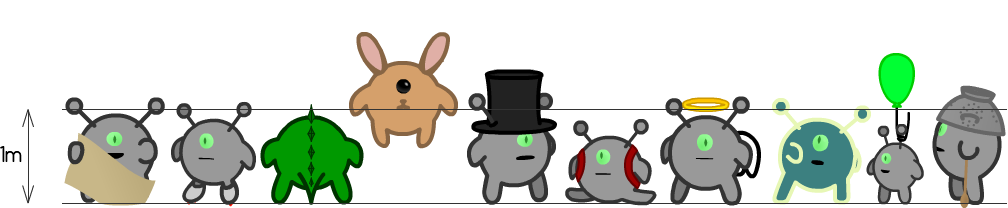
In case you’re wondering, here’s how tall each character is:

The cast of Run 3
(Click to zoom in.)

The box-pushing challenges

are easier thanks to the Student’s changes. Also, the Runner’s parts are now 100% optional.

I made these changes so that more people will be able to see what comes next. Before any elitists complain, I’m not trying to make the game so easy that everyone in the world can beat it. I just don’t think a minigame should be the game’s ultimate challenge.


That’s all for now, but I’ll put a link here once I write the post on the Student. Hopefully you enjoyed this peek behind the scenes!

Scaling Strategy 2: Stage Dimensions

Instead of the current screen’s resolution, you could look at the stage dimensions.

I know that the “screen resolution” method means that one inch on your screen is one inch on theirs. That can be nice to have, especially when dealing with tablets. On the other hand, it’s not so great for small screens. A one-inch-wide button on a low-end device could fill a quarter of the screen!

Plus, you can’t even get at the screen resolution in Flash, and HTML5 may or may not be able to access that information.

The “stage dimensions” method, on the other hand, works on all platforms, handles smaller screens gracefully, and is much easier to test.

Using the stage’s dimensions

Let’s say I’ve convinced you to give this method a shot. How does it work?

The first step is to take the stage dimensions and convert them into scaleX and scaleY values. Then scale all your objects using these values.

Flash defines four stage scale modes, each representing a different way to generate scaleX and scaleY. Let’s take a look.

NO_SCALE

Click and drag in this demo to get a sense of the NO_SCALE option. (Requires JavaScript.)

Somehow I doubt this is the one you’re looking for.

Implementing NO_SCALE

You already implemented it. Moving on!

EXACT_FIT

Quick: what’s the simplest way you can think of to handle scaling?

Remember, you have access to stageWidth and stageHeight, and you can set scaleX and scaleY.

If you guessed “scale x and y independently,” you’re right!

Hey, I never said it was a good way to handle scaling. I just said that it’s simple.

Implementing EXACT_FIT

var scaleX:Float = stage.stageWidth / 800;
var scaleY:Float = stage.stageHeight / 600;

Lib.current.scaleX = scaleX;
Lib.current.scaleY = scaleY;

That’s it!

Note: you can’t set stage.scaleX and stage.scaleY. In most cases, Lib.current works equally well, which is why I used that. (Just avoid adding children directly to the stage.)

NO_BORDER

Obviously, you don’t want to stretch your content like that. Somehow, you have to make sure that each individual object keeps the same proportions.

There are two main ways to do this, and NO_BORDER is one of them.

Implementing NO_BORDER

NO_BORDER considers the same two values as EXACT_FIT, but it picks only one. Specifically, it picks the larger one.

var scaleX:Float = stage.stageWidth / 800;
var scaleY:Float = stage.stageHeight / 600;

var scale:Float = Math.max(scaleX, scaleY);

Lib.current.scaleX = scale;
Lib.current.scaleY = scale;

Imagine your stage is made wider, so that scaleX comes out to 1.55, and scaleY is still 1.

NO_BORDER will choose the larger of the two values (1.55), making the stage the right horizontal size, but too large vertically.

SHOW_ALL

If NO_BORDER tends to make objects too large, SHOW_ALL errs on the side of keeping them small.

Implementing SHOW_ALL

Like NO_BORDER, except with Math.min().

//SHOW_ALL
var scaleX:Float = stage.stageWidth / 800;
var scaleY:Float = stage.stageHeight / 600;

var scale:Float = Math.min(scaleX, scaleY);

Lib.current.scaleX = scale;
Lib.current.scaleY = scale;

Given the choice between 1.55 and 1, SHOW_ALL will choose the smaller value. This ensures that everything will fit, though there will also be extra space.

In most apps, extra space is better than objects being cut off, making SHOW_ALL the clear winner.

Scaling Strategy 1: Pixel Density

In my previous post, I explained why the Layout library isn’t suited for high-resolution screens. The short version is, that library is designed for a constant pixel density. Any layout that looked good on a high-resolution screen would look terrible on a low-resolution one, and vice versa.

The SimpleSWFLayout sample project, as it appears on a high-resolution device.

Here, the header is not scaled vertically, which is why it appears so short. Ideally, we’d want a way to increase its height based on the device’s resolution.

Fortunately, OpenFL provides a way to access the pixel density of the current screen: Capabilities.screenDPI. Now all we need is a layout library that supports pixel density scaling. Conveniently, I happen to have made one!

To convert SimpleSWFLayout to my library, follow these instructions.

Enabling pixel-density-based scaling

Scale.stageScale.screenDPI();

Add that somewhere, and you’re done!

Also make sure not to compile for Flash or HTML5. Capabilities.screenDPI just doesn’t work on those platforms. :/

SimpleSWFLayout with DPI scaling

Same device as before, but now I can actually see the details!

Ok, so there aren’t any details to see. But if there were details, I’d totally be able to see them!

Not-so-simple SWF Layout

OpenFL provides a sample project named SimpleSWFLayout, demonstrating how you can set up a layout that scales along with the window.

How the SimpleSWFLayout looks

Three items are being resized here:

  • The background scales to fit the screen.
  • The header scales horizontally to take up almost all of the window (except for a small margin on both sides). It doesn’t scale vertically.
  • The column scales vertically to take up most of the space below the header, and it doesn’t scale horizontally. It has a larger margin below it than above it.

All this is automatic, courtesy of the Layout library!

How it works

The Layout library uses some clever tricks to make this easier on you. But if you don’t know that these tricks exist, you can’t really take advantage of them, can you? Let’s fix that.

The project is called SimpleSWFLayout because it loads its three assets from a SWF file (layout.swf, found in the asset folder). For convenience, it also includes the layout.fla file used to generate the swf.

If you have Flash Professional, you can open up layout.fla and see that it has all three items already arranged correctly. The header already has a 12 pixel margin above it, and a 16 pixel margin on each side. The column is already placed 20 pixels below the header, 16 pixels from the left, and 54 pixels above the bottom.

So all you need to do is tell the library that you want to keep these margins constant. That’s what’s going on when the example specifies TOP, STRETCH for the header and STRETCH, LEFT for the column. (Traditionally, x comes before y, but for some reason the opposite is true here. I don’t know why.)

The base stage dimensions

If you’re paying really close attention, you may notice that the background in layout.fla is 800×600, while the SimpleSWFLayout project starts at 800×500.

Don’t worry! It doesn’t need to match.

The background is what defines the “base” stage size. The margins will be calculated based on the size of the background, and then scaled to fit the actual stage size. It’s just like if the window started at 800×600 and was promptly scaled down to 800×500.

Whenever you add a new object, it will use the base stage size to figure out what margins it needs. Even if you’ve already scaled the window, it’ll refer to the background’s original width and height.

Other alignments

The example demonstrates how to align something to the left and top. But that’s not much of a demonstration, is it? To keep an object 16 pixels away from the left edge, all the Layout library has to do is not change its x coordinate.

But you can align objects to the right, bottom, or center of the screen too. If you align to the right, the Layout library will update the x coordinate so that the object moves with the right edge of the screen. However far it started from the right, that’s how far it will be after resizing. Same with aligning to the bottom.

(Well, mostly. There’s some inconsistent behavior for small windows, but I won’t get into that.)

If you choose to align an object to the center of the screen, the Layout library will remember how far it was from the center, and keep it that far. I like to think of this as “pinning” the object to the center, because it’s like you stick a pin in the object wherever it crosses the center line. Whenever the center line moves, that point on the object follows that point on the center line. (The object doesn’t actually have to touch the center line to be “pinned,” but I still like the metaphor.)

One of my first criticisms of this library was that it didn’t allow you to place objects relative to one another, and keep them that way. But that just isn’t true.

Let’s say your main menu has three buttons right next to one another. You put all three in a line just below the center, and pin them (both horizontally and vertically). When you resize the stage, all three buttons will move by the same amount in the same direction.

In a small window. In a large window.

They’re staying in the same position relative to one another, and they’re staying just below the center. Looks good!

The problem

There’s something wrong with this implementation. Have you figured it out yet?

Hint: there are only two options for scaling. Either you keep the size constant, or you fill the stage, minus a constant value.

Take a moment to think about it.

(Or just scroll down if you aren’t in the mood for games.)

The SimpleSWFLayout sample project, rendered in an enormous window.
The SimpleSWFLayout sample project, as it appears in an extra-large window. This screenshot was taken on a Nexus 6.

That right there is a lot of empty space.

The problem is those constant values I mentioned. A constant 16-pixel margin looks good enough on screens around 800×600, but when the screen is over 2000 pixels wide, it just gets lost. And a constant width and height for the column and header respectively means they take up less and less of the screen as it gets bigger.

In short, the Layout library is not, in itself, enough for your mobile layout needs. Fortunately, I’ve created a more advanced alternative. Documentation coming soon!