Why I haven’t updated Run Mobile in ages (part 1)

Google has announced a November 1 deadline to update Play Store apps, and I’ve been keeping an eye on that one. We’re now getting close enough to the deadline that I’m officially giving up on releasing new content with the update, and instead I’ll just release the same version with the new required library.

But why did it take this long for me to decide that? Why didn’t I do this a year ago when Google made their announcement, and keep working in the meantime? To answer that question, this blog post will document my journey to make a single small change to Run Mobile. The first step, of course, is to make sure it still compiles.

I should mention that I have two computers that I’ve used to compile Android apps. A Linux desktop, and a Windows laptop.

The Linux machine:

  • Is where I do practically all my work nowadays.
  • Performs well.
  • Is the one you’ve seen if you’ve watched my streams.
  • Has never, if I recall correctly, compiled a release copy of Run Mobile.

The Windows machine:

  • Hasn’t seen use in years.
  • Is getting old and slow; probably needs a fresh install.
  • Has the exact code I used to compile the currently-released version of Run Mobile.

Compiling on Windows

I tried this second, so let’s talk about it first. That makes sense, right?

Well, I found that I had some commits I hadn’t uploaded. Figured I’d do that real quick, and it turns out that Git is broken somehow. Not sure why, but it always rejects my SSH key. I restarted the machine, reuploaded the key to GitHub, tried both command line and TortiseGit, and even tried GitHub’s app which promises that you don’t have to bother with SSH keys. Everything still failed. At some point I’ll reinstall Git, but that’s for later. My goal here is to compile.

Fortunately, almost all of my code was untouched since the last time I compiled, and so I compiled to Neko. No dice. There were syntax errors, null pointers, and a dozen rendering crashes. Oh right, I never compiled this version for Neko, because I always targeted Flash instead.

So I stopped trying to fix Neko, and compiled for Android. And… well, there certainly were errors, but I’ll get to them later. Eventually, I fixed enough errors that it compiled. Hooray!

But for some reason I couldn’t get the machine to connect to my phone, so I couldn’t install and test the app. Tried multiple cables, multiple USB ports… nothing. And that was the last straw. This laptop was frustrating enough when Git and adb worked.

Compiling on Linux

Since Git does work on this machine, I was easily able to roll my code back. I’d even made a list of what libraries needed to be rolled back, and how far. (This is far from the first time I’ve had to do this.)

With all my code restored, I tried compiling. Result: lime/graphics/cairo/Cairo.hx:35: characters 13-21 : Unexpected operator. A single error, presumably hiding many more. Out of curiosity, I checked the file in question, expecting to see a plus sign in a weird spot, or an extra pair of square brackets around something, or who knows. Instead I found the word “operator”. (Once again I have fallen victim to the use-mention distinction.) Apparently Haxe 4.0.0 made “operator” a keyword, and Lime had to work around it.

Right, right. I’d gone back to old versions of my code, but I hadn’t downgraded Haxe. I’d assumed doing so would be difficult, possibly requiring me to download an untrustworthy file. This was the point in the process when I tried to compile on Windows instead. As explained above, that fell through, so I came back and discovered I could get it straight from the Haxe Foundation. (I’d been looking in the wrong place.) Once I reverted Haxe, that first error went away.

But that was only error #1. Fixing it revealed a new one, and fixing that revealed yet another. Rinse and repeat for an unknown number of times. Plus side, it’s simpler to keep track of a single error at a time than 20 at once. Minus side, there were a lot of errors.

  1. Type not found: haxe.Exception – Apparently I hadn’t downgraded all my libraries. After some file searching, I found two likely culprits and downgraded both.
  2. Cannot create closure with more than 5 arguments – I’ve never seen this one before, and neither has Google. I never even knew that function bindings were closures. Also, I’m not sure how addRectangle.bind(104, 0x000000, 0) has more than 5 arguments (perhaps it counts the optional arguments). But this wasn’t worth a lot of time, so I used an anonymous function to do the same thing.
  3. Invalid field access : lastIndexOf – This often comes up when a string is null. Can’t search for the last index of a letter if the string isn’t there. Fortunately I’d already run into this bug on Windows and knew the solution. Haxe 3.4 tells you to use Sys.programPath() instead of Sys.executablePath(), except `programPath` is broken.
  4. Extern constructor could not be inlined – Another error stemming from an old version of Haxe, this comes up when you cache data between compilations. It can be fixed by updating Haxe (not an option in my case) or turning off VSHaxe’s language server.
  5. Invalid field access : __s – Another null pointer error I’d already seen. But it was at this point that I remembered not to try to compile for Neko, so I turned my focus to Android instead.
  6. You need to run "lime setup android" before you can use the Android target – So of course that wasn’t going to be easy either. Apparently I’d never told Lime where to find some crucial files. (Also apparently I’d never downloaded the [NDK](https://developer.android.com/ndk/), meaning I’ve never used this machine to compile for Android.)
  7. Type not found : Jni – Wait, I (vaguely) remember that class. Why is it missing? _One search later…_ Aha, it’s still there, it’s just missing some tweaks I made on the Windows computer. This is all for some debug info that rarely matters, so I removed it for the time being.
  8. arm-linux-androideabi-g++: not found – Uh oh. This is an error in hxcpp, a library that I try very hard to avoid dealing with. Android seems to have retired the “standalone toolchains” feature this old version of hxcpp uses, and I’ve long since established that newer versions of hxcpp are incompatible. Well, I tried using `HXCPP_VERBOSE` to get more info, and while it helped with a few hidden errors, I spent way too long digging into hxcpp without making much progress. Instead, I went all the way back to NDK r18.
  9. 'typeinfo' file not found – Another C++ error, great. Seems I’m not the first OpenFL dev to run into this one, which is actually good because it lets me know which NDK version I actually need: r15c. The Android SDK manager only goes as far back as r16, so I did a manual download.
  10. gradlew: not found – It might be another “not found” error, but make no mistake, this is huge progress. All the C++ files (over 99% of the game) compiled successfully, and it had reached the Gradle/Java portion, something I’m far more familiar with. Not that I needed to be because, someone else already fixed it. The only reason I was still seeing the error is because I couldn’t use newer versions of OpenFL. One quick copy-paste later, and…
  11. Cannot convert URL '[Kongregate SDK file]' to a file. – No kidding it can’t find the Kongregate SDK; I hard-coded a file path that only exists on Windows. In retrospect I should have used a relative path, but for now I hard-coded a different path. Then, to make absolutely certain I had the right versions, I copied the Kongregate SDK (and other Java libraries) from my laptop.
  12. Could not GET 'https://dl.bintray.com/[...]'. Received status code 403 from server: Forbidden – There were nine or ten of these errors, each with a different url. Apparently Bintray has been shut down, which means everyone has found somewhere else to host their files. I looked up the new URLs and plugged them in. Surprisingly, the new urls worked first try.

And, finally, it compiled.

Closing thoughts

And that’s why I haven’t updated Run Mobile in ages. Every time I try to compile, I have to wade through a slew of bugs. Not usually this many, but there’s always something, and I’ve learned to associate updating mobile with frustration.

I was hoping to avoid this whole process. I’d hoped to finish Runaway, allowing me to use the latest versions of OpenFL, hxcpp, and the Android SDK. But there just wasn’t enough time.

Don’t get me wrong, it feels good to have accomplished this. But as a reminder, I’ve made zero improvements thus far. I haven’t copied over any new content, I haven’t updated any libraries, I haven’t even touched the Google Play Billing Library (you know, the one that must be updated by November). I’ve spent two weeks just trying to get back what I already had.

Maybe I’m being too pessimistic here. I have, in fact, made progress since February 2018. My code now compiles on Linux, unlike in 2018. My 2018 code relied on Bintray, which is now gone. And it’s possible that new content may have been included without me even trying.

And that’s enough for today. Join me next time, on my journey to make a single small change to Run Mobile.

Haxe has too many ECS frameworks

Ever since I learned about it, I’ve wanted to use the entity component system (ECS) pattern to make games. Used properly, the pattern leads to clean, effective, and in my opinion cool-looking code. So when I was getting started my game engine, I looked for an ECS library that to build off of. And I found plenty.

The Haxe community is prolific and enthusiastic, releasing all kinds of libraries completely for free. That’s great, but it’s also a bit of a problem. Instead of working together to build a few high-quality libraries, everyone decided to reinvent the wheel.
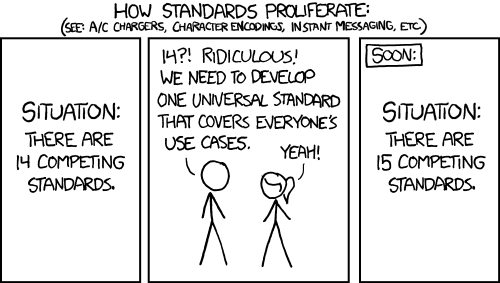
xkcd: Standards

It did occur to me that I was preparing to reinvent the wheel, but no one had built a game engine capable of what I wanted, so I went ahead with it. Eventually I realized that’s probably what all the other developers were thinking too. Maybe there’s a reason for the chaos.

Let’s take a look at (eleven of) the available frameworks. What distinguishes each one?

Or if you want to see the one I settled on, skip to Echoes.

Ash

Let’s start at the beginning. Ash was one of the first ECS frameworks for Haxe, ported from an ActionScript 3 library of the same name. Makes sense: Haxe was originally based on AS3, and most of the early developers came from there.

Richard Lord, who developed the AS3 version, also wrote some useful blog posts on what an ECS architecture is and why you might want to use it.

Objectively, Ash is a well-designed engine. However, it’s held back by having started in ActionScript. Good design decisions there (such as using linked list nodes for performance) became unnecessary in Haxe, but the port still kept them in an effort to change as little as possible. This means it takes a bunch of typing to do anything.

//You have to define a "Node" to indicate which components you're looking for; in this case Position and Motion.
class MovementNode extends Node<MovementNode>
{
    public var position:Position;
    public var motion:Motion;
}
//Then systems use this node to find matching entities.
private function updateNode(node:MovementNode, time:Float):Void
{
    var position:Position = node.position;
    var motion:Motion = node.motion;

    position = node.position;
    motion = node.motion;
    position.position.x += motion.velocity.x * time;
    position.position.y += motion.velocity.y * time;
    //...
}

It honestly isn’t that bad for one example, but extra typing adds up.

ECX

ECX seems to be focused on performance, though I can’t confirm or debunk this.

As far as usability goes, it’s one step better than Ash. You can define a collection of entities (called a “Family” instead of a “Node”) in a single line of code, right next to the function that uses it. Much better organized.

class MovementSystem extends System {
    //Define a family.
    var _entities:Family<Transform, Renderable>;
    override function update() {
        //Iterate through all entities in the family.
        for(entity in _entities) {
            trace(entity.transform);
            trace(entity.renderable);
        }
    }
}

Eskimo

Eskimo is the programmer’s third attempt at a framework, and it shows in the features available. You can have entirely separate groups of entities, as if they existed in different worlds, so they’ll never accidentally interact. It can notify you when any entity gains or loses components (and you can choose which components you want to be notified of). Like in ECX, you can create a collection of components (here called a View rather than a Family) in a single line of code:

var viewab = new View([ComponentA, ComponentB], entities);
for (entity in viewb.entities) {
    trace('Entity id: ${entity.id}');
    trace(entity.get(ComponentB).int);
}

The framework has plenty of flaws, but its most notable feature is the complete lack of macros. Macros are a powerful feature in Haxe that allow you to run code at compile time, which makes programming easier and may save time when the game is running.

Lacking macros (as well as the “different worlds” thing I mentioned) slows Eskimo down, and makes it so you have to type out more code. Not as much code as in Ash, but it’s still inconvenient.

Honestly, though, I’m just impressed. Building an ECS framework without macros is an achievement, even though the framework suffers for it. Every single one of the other frameworks on this list uses macros, for syntax sugar if nothing else. Even Ash uses a few macros, despite coming from AS3 (which has no macros).

edge

edge (all lowercase) brings an amazing new piece of syntax sugar:

class UpdateMovement implements ISystem {
    function update(pos:Position, vel:Velocity) {
        pos.x += vel.vx,
        pos.y += vel.vy;
    }
}

You no longer have to create a View yourself, or iterate through that view, or type out entity.get(Position) every time you want to access the Position component. Instead, just define an update function with the components you want. edge will automatically give you each entity’s position and velocity. You don’t even have to call entity.get(Position) or anything; that’s already done. This saves a lot of typing when you have a lot of systems to write.

edge also provides most of the other features I’ve mentioned so far. Like in Eskimo, you can separate entities into different “worlds” (called Engines), and you can receive notifications when entities gain or lose components. You can access Views if needed/preferred, and it only takes a line of code to set up. Its “World” and “Phase” classes are a great way to organize systems, and the guiding principles are pretty much exactly how I think the ECS pattern should work.

Have I gushed enough about this framework yet? Because it’s pretty great. Just one small problem.

A system’s update function must be named update. A single class can only have one function with a given name. Therefore, each system can only have one update function. If you want to update two different groups of entities, you need two entire systems. So the syntax sugar doesn’t actually save that much typing, because you have to type out an entire new class declaration for each function.

Eventually, the creator abandoned edge to work on edge 2. This addresses the “one function per system” problem, though sadly in its current state it loses all the convenience edge offered. (And the lack of documentation makes me think it was abandoned midway.)

Baldrick

Baldrick is notable because it was created specifically in response to edge. Let’s look at the creator’s complaints, to see what others care about.

• It requires `thx.core`, which pulls a lot of code I don’t need

That’s totally fair. Unnecessary dependencies are annoying.

• It hasn’t been updated in a long time, and has been superceded by the author by edge2

It’s always concerning when you see a library hasn’t been updated in a while. This could mean it’s complete, but usually it means it’s abandoned, and who knows if any bugs will be fixed. I don’t consider this a deal-breaker myself, nor do I think edge 2 supersedes it (yet).

• Does a little bit too much behind-the-scenes with macros (ex: auto-creating views based on update function parameters)

Oh come on, macros are great! And the “auto-creating views” feature is edge’s best innovation.

• Always fully processes macros, even if display is defined (when using completion), slowing down completion

I never even thought about this, but now that they mention it, I have to agree. It’s a small but significant oversight.

• Isn’t under my control so isn’t easily extendable for my personal uses

It’s… open source. You can make a copy that you control, and (optionally) submit your changes back to the main project. If the original project isn’t abandoned, they’ll usually accept your contributions. (And if it is abandoned, then you can just tell people to use your fork.)

• Components and resources are stored in an `IntMap` (rather than a `StringMap` like in edge)

This is actually describing what Baldrick does, but it still mentions something edge does wrong. StringMap isn’t terrible, but Baldrick’s IntMap makes a lot more sense.

Anyway, Baldrick looks well-built, and it’s building on a solid foundation, but unfortunately it’s (quite intentionally) missing the syntax sugar that I liked so much.

var movingEntities:View<{pos:Position, vel:Velocity}> = new View();

public function process():Void {
    for(entity in positionEntities) {
        entity.data.pos.x += entity.data.vel.x;
        entity.data.pos.y += entity.data.vel.y;
    }
}

That seems like more typing than needed – entity.data.pos.x? Compare that to edge, which only requires you to type pos.x. I suppose it could be worse, but that doesn’t mean I’d want to use it.

Oh, and as far as I can tell, there’s no way to get delta time. That’s inconvenient.

exp-ecs

Short for “experimental entity component system,” exp-ecs is inspired by Ash but makes better use of Haxe. It does rely on several tink libraries (comparable to edge’s dependency on thx.core). The code looks pretty familiar by now, albeit cleaner than average:

@:nodes var nodes:Node<Position, Velocity>;

override function update(dt:Float) {
    for(node in nodes) {
        node.position.x += node.velocity.x * dt;
        node.position.y += node.velocity.y * dt;
    }
}

Not bad, even if it isn’t edge.

Under the hood, it looks like component tracking is slower than needed. tink_core’s signals are neat and all, but the way they’re used here means every time a component is added, the entity will be checked against every node in existence.

Ok, I just realized how bad that explanation probably was, so please enjoy this dramatization of real events instead, featuring workers at a hypothetical entity factory:

Worker A: Ok B, we just added a Position component. Since each node needs to know which entities have which components, we need to notify them.

Worker B: On it! Here’s a node for entities with Hitboxes; does it need to be notified?

Worker A: Nope, the entity doesn’t have a Hitbox.

Worker B: Ok, here’s a node that looks for Acceleration and Velocity; does it need to be notified?

Worker A: No, the entity doesn’t have Acceleration. (It has a Velocity, but that isn’t enough.)

Worker B: Next is a node that looks for Velocity and Position; does it need to be notified?

Worker A: Yes! The entity has both Velocity and Position.

Worker B: Here’s a node that needs both Position and Appearance; does it need to be notified?

Worker A: No, this is an invisible entity, lacking an Appearance. (It has a Position, but that isn’t enough.)

Worker B: Ok, next is a node for entities with Names; does it need to be notified?

Worker A: It would, but it already knows the entity’s Name. No change here.

Worker B: Next, we have…

This process continues for a while, and most of it is totally unnecessary. We just added a Position component, so why are we wasting time checking dozens or hundreds of nodes that don’t care about Position? None of them will have changed. Sadly, exp-ecs just doesn’t have any way to keep track. It probably doesn’t matter for most games, but in big enough projects it could add up.

(Please note that exp-ecs isn’t the only framework with this issue, it’s just the one I checked to be sure. I suspect the majority do the same thing.)

On the plus side, I have to compliment the code structure. There’s no ECS framework in existence whose code can be understood at a glance, but in my opinion exp-ecs comes close. (Oh, and the coding style seems to perfectly match my own, a coincidence that’s never happened before. There was always at least one small difference. So that’s neat.)

Cog

Cog is derived from exp-ecs, and calls itself a “Bring Your Own Entity” framework. You’re supposed to integrate the Components class into your own Entity class (and you can call your class whatever you like), and now your class acts like an entity. I don’t buy it. Essentially their Components class is the Entity class, they’re just trying to hide it.

As far as functionality, it unsurprisingly looks a lot like exp-ecs:

@:nodes var movers:Node<position, velocity>;
override public function step(dt:Float) {
    super.step(dt);
    for (node in movers) {
        node.position.x += node.velocity.x * dt;
        node.position.y += node.velocity.y * dt;
    }
}

I was pleasantly surprised to note that it has component events (the notifications I talked about for Eskimo and edge). If Cog had existed when I started building Runaway, I would have seriously considered using it. In the end I’d probably have rejected it for lack of syntax sugar, but only barely.

Awe

Awe is a pseudo-port of Artemis, an ECS framework written in Java. I’m not going to dig deep into it, because this is the example code:

var world = World.build({
    systems: [new InputSystem(), new MovementSystem(), new RenderSystem(), new GravitySystem()],
    components: [Input, Position, Velocity, Acceleration, Gravity, Follow],
    expectedEntityCount: ...
});
var playerArchetype = Archetype.build(Input, Position, Velocity, Acceleration, Gravity);
var player = world.createEntityFromArchetype(playerArchetype);

Java has a reputation for being verbose, and this certainly lives up to that. I can look past long method names, but I can’t abide by having to list out every component in advance, nor having to count entities in advance, nor having to define each entity’s components when you create that entity. What if the situation changes and you need new components? Just create a whole new entity I guess? This engine simply isn’t for programmers like me.

That said, the README hints at something excellent that I haven’t seen elsewhere…

@Packed This is a component that can be represented by bytes, thus doesn’t have any fields whose type is not primitive.

…efficient data storage. With all the restrictions imposed above, I bet it takes up amazingly little memory. Sadly this all comes at the cost of flexibility. It reminds me of a particle system, packing data tightly, operating on a set number of particles, and defining the limits of the particles’ capabilities in advance.

OSIS

OSIS combines entities, components, systems, and network support. The networking is optional, but imposes a limitation of 64 component types that applies no matter what. (I’ve definitely already exceeded that.) I don’t have the time or expertise to discuss the can of worms that is networking, so I’ll leave it aside.

Also notable is the claim that the library “avoids magic.” That means nothing happens automatically, and all the syntax sugar is gone:

var entitySet:EntitySet;

public override function init()
    entitySet = em.getEntitySet([CPosition, CMonster]);

public override function loop()
{
    entitySet.applyChanges();

    for(entity in entitySet.entities)
    {
        var pos = entity.get(CPosition);
        pos.x += 0.1;
    }
}

I have to admit this is surprisingly concise, and the source code seems well-written. The framework also includes less-common features like component events and entity worlds (this time called “EntityManagers”).

I still like my syntax sugar, I need more than 64 components, and I don’t need networking, so this isn’t the library for me.

GASM

According to lib.haxe.org, GASM is the most popular haxe library with the “ecs” tag. However, I am an ECS purist, and as its README states:

Note that ECS purists will not consider this a proper ECS framework, since components contain the logic instead of systems. If you are writing a complex RPG or MMO, proper ECS might be worth looking in to, but for more typical small scale web or mobile projects I think having logic in components is preferable.

Listen, if it doesn’t have systems, then don’t call it “ECS.” Call it “EC” or something.

It seems to be a well-built library, better-supported than almost anything else on this list. However, I’m not interested in entities and components without systems, so I chose to keep looking.

Ok, so what did I go with?

Echoes

Echoes’ original creator described it as a practice project, created to “learn the power of macros.” Inspired by several others on the list, it ticked almost every single one of my boxes.

It has syntax sugar like edge’s (minus the “one function per system” restriction), no thx or tink dependencies, yes component events, convenient system organization, and a boatload of flexibility. Despite deepcake’s (the creator’s) modesty, this framework has a lot to it. It received 400+ commits even before I arrived, and is now over 500. (Not a guarantee of quality, but it certainly doesn’t hurt.)

Echoes’ performance

I haven’t seriously tested Echoes’ speed, but deepcake (the original dev) made speed a priority, and I can tell that it does several things right. It uses IntMap to store components, it keeps track of which views care about which components (meaning it’s the first one I’m sure doesn’t suffer from the problem I dramatized in the exp-ecs section), and it does not let you separate entities into “worlds.” It’s a shame that it lacks that last feature, but on the other hand I haven’t needed worlds yet, and they do incur a performance hit.

Echoes’ flexible components

Let’s talk about how components work. In every other framework I’ve discussed thus far, a component must be a class, and it must extend or implement either “Component” or “IComponent,” respectively. There’s a very specific reason for these restrictions, but they still get in the way.

For instance, say you wanted to work with an existing library, such as—oh, I don’t know—Away3D. Suppose that Away3D had a neat little Mesh class, representing a 3D model that can be rendered onscreen. Suppose you wanted an entity to have a Mesh component. Well, Mesh already extends another class and cannot extend Component. It can implement IComponent, but that’s inconvenient, and you’d have to edit Mesh.hx. (Which falls squarely in the category of “edits you shouldn’t have to make.”) Your best bet is to create your own MeshComponent class that wraps Mesh, and that’s just a lot of extra typing.

In Echoes, almost any Haxe type can be a component. That Mesh? Valid complement, no extending or implementing necessary. An abstract type? Yep, it just works. That anonymous structure? Well, not directly, but you can wrap it in an abstract type. Or if wrapping it in an abstract is too much work, make a typedef for it. (Note: typedefs don’t work in deepcake’s build, but they were the very first thing I added, specifically because wrapping things in abstracts is too much work.)

All this is accomplished through some slightly questionable macro magic. Echoes generates a lot of extra classes as a means of data storage. For instance, Position components would be stored in a class named ContainerOfPosition. Echoes does this both to get around the “extend or implement” restriction, and because it assumes that it’ll make lookups faster. This may well be true (as long as the compiler is half-decent), it’s just very unusual.

Echoes: conclusion

I settled on Echoes for the syntax sugar and the component events. At the time, the deciding factor was component events, and I hadn’t realized any other libraries offered those. So… whoops.

I don’t regret my choice, at all. The syntax sugar is great, abstract/typedef support is crucial, and the strange-seeming design decisions hold up better than I first thought.

Addendum: ecso

ecso (whose name is always written in monospace font) is a promising addition to the Haxe ECS ecosystem. Unlike all the other libraries, this one is a compiler plugin, meaning it modifies the behavior of Haxe itself, which theoretically makes it faster to compile.

It’s a well-thought-out library, offering most of the features I want to see in an ECS framework. The main thing it’s missing is component events. The dev initially expressed interest in adding them, so I figured I’d hold off on reviewing ecso until that happened. Sadly, the library hasn’t been updated in a while, so I decided to write a short review.

As it stands now, ecso is a solid option if you want a simpler alternative to Echoes and don’t care about component events. In particular, ecso tries to provide as much transparency as possible. Its API really is only four functions long, and those functions do nothing more or less than what their names suggest. It turns out that four functions really are enough, as long as you’re willing to track and schedule everything. For better or worse, there’s no inversion of control here.
How space works in Run

Space in the Run series is kind of complicated, all because of a decision I made early on. See, I had a problem: how can I program a game where you run on the walls and ceiling? I’d made platformers before, but never anything where “up” could become “left” at a moment’s notice.

My answer was abstraction. I would program the physics exactly the way I was used to. The Runner would move around in her own little world where “up” means up and “down” means down. This meant I could focus on getting the running and jumping physics to feel just right. Then after those physics had run, I would use a mathematical formula to rotate everything by some multiple of 90°, depending on which wall the Runner was really on.

Well, kind of. The actual details varied from game to game, but the core guiding principle remained “I want the jump physics to be easy to program.” In Run 1 I took several shortcuts. By the time I got to Run 3 and Runaway, I was using 3D matrices to accurately convert between nested coordinate spaces.

Coordinate spaces

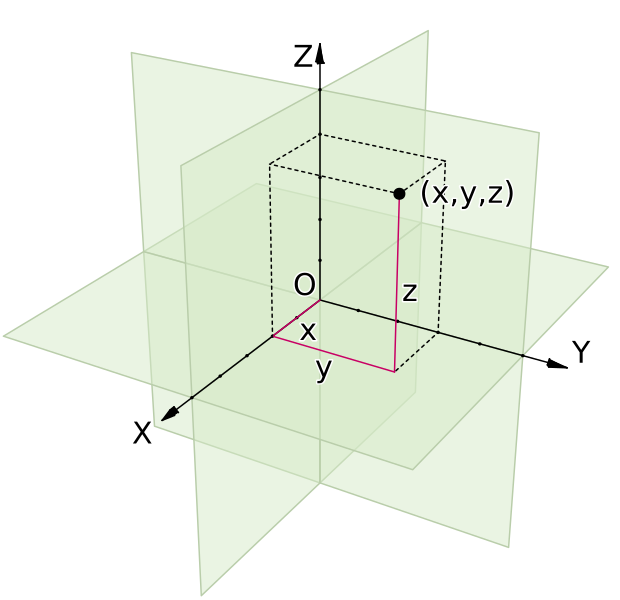
Cartesian coordinate systems use numbers to represent points. Coordinate spaces are when you’re using a coordinate system to represent physical space. They can be two dimensional, three dimensional, and even more. (Though I’m going to focus on 3D for obvious reasons.)

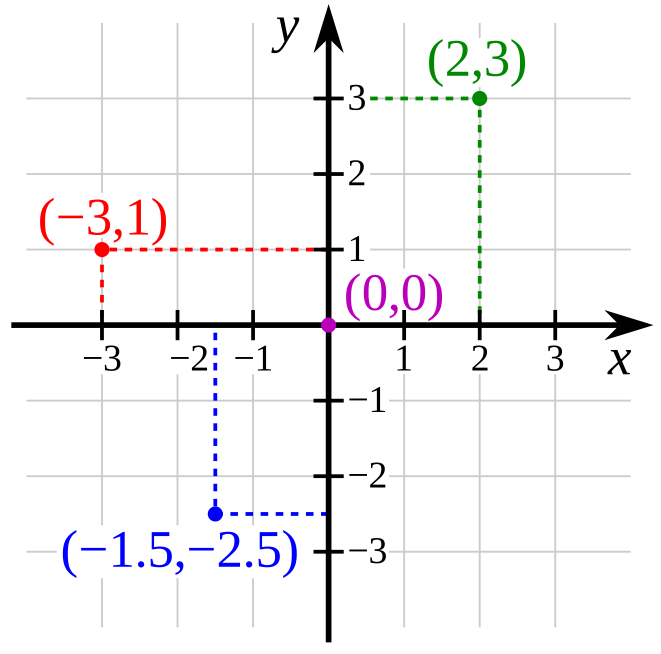
A 2D coordinate space, with four points labeledA 3D coordinate space, with one point labeled

Those right there are coordinate spaces. Both are defined by their origin (the center point) and the axes that pass through that origin. As the name implies, the origin acts as the starting point; everything in the space is relative to the origin. Then the axes determine distance and direction. By measuring along each axis in turn, you can place a point in space. For instance, (2, 3) means “2 units in the X direction and 3 units in the Y direction,” which is enough to precisely locate the green point.

Axis conventions

Oh right, each axis has a direction. The arrow on the axis points towards the positive numbers, and the other half of the axis is negative numbers. I like to use terms like “positive X” (or +X) and “negative Y” (or -Y) as shorthand for these directions.

By convention, the X axis goes left-to-right. In other words, -X is left, and +X is right.

The Y axis goes bottom-to-top in 2D, except that computer screens start in the top-left, so in computer graphics the Y axis goes top-to-bottom. I would guess that this stems from the old days when computers only displayed text. In English and similar languages, text starts in the top-left and goes down. The first line of text is above the second, and so on. It just made sense to keep that convention when they started doing fancier graphics.

In 3D, the Z axis is usually the one going bottom-to-top, while the Y axis goes “forwards,” or into the screen. Personally, I don’t like this convention. We have a perfectly good vertical axis; why change it all of a sudden?

In Runaway, I’ve chosen to stick with the convention established by 2D text and graphics. The X axis goes left-to-right, the Y axis goes top-to-bottom, and the Z axis goes forwards/into the screen. If I ever use Runaway for a 2D game, I want “left,” “right,” “up,” and “down” to mean the same things.

Not that it matters much. Runaway doesn’t actually enforce +Y meaning “down.” I wrote comments suggesting that it should, but because of the nature of the games I was building, I never hard-coded it. Instead, I coded ways to define your own custom coordinate spaces.

Rotated coordinate spaces

You know how different game engines can assign different meanings to different axes? Well in fact, each individual coordinate space can assign different meanings to different axes. In a single game, you can have one coordinate space where +Y means “down,” another where it means “up,” and a third where it means “forwards.”

This brings us back to Run. I wanted to program character motion in a single, consistent coordinate space. I wanted to be able to say “the left arrow key means move in the -X direction, and the right arrow key means move in the +X direction,” and be done with it. Time for a couple images to show what I mean.

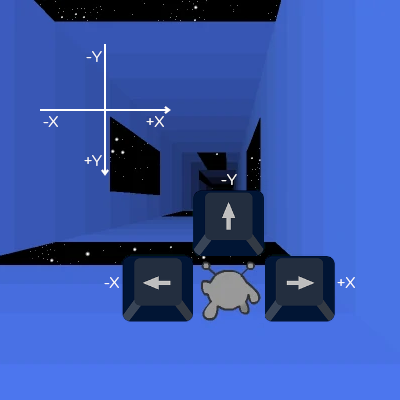
The Runner stands on the floor. There's a set of axes showing that -X is left, +X is right, and -Y is up, and a set of arrow keys showing the same.

Above is the basic case. You’re on the floor, and the arrow keys move you left, right, and up. If the game was this simple, I wouldn’t have anything to worry about.

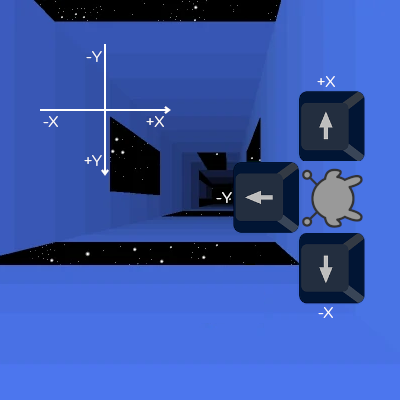
The Runner stands on the right wall. The axes still show that -X is left, +X is right, and -Y is up, but now the arrow keys show -X being down, +X being up, and -Y being left.

Once you touch a wall, the Runner’s frame of reference rotates. She now has a distinct coordinate space, rotated 90° from our perspective. She can move around this space just like before: left arrow key is -X, right arrow key is +X, and jump key is -Y. It works great, until she has to interact with the level.

In her own coordinate space, she’s at around (-1, 2, 5). (Assuming 1 unit ≈ 1 tile.) In other words, she’s a bit left of center (X = -1) on the floor (Y = 2) of the tunnel. But wait a minute! In the tunnel’s coordinate space, the floor has a wide gap coming up quick. If the Runner continues like this, she’ll fall through! That can’t be right.

To fix this, we need to convert between the two coordinate spaces. We need to rotate the Runner’s coordinates 90° so that they match the tunnel’s coordinates, and then check what tiles she’s standing on. We end up with (2, 1, 5) – a bit below center (Y = 1) on the right wall (X = 2) of the tunnel. That wall doesn’t have a gap coming up, so she won’t have to jump just yet. Much better.

I have other use cases to get into, one of which is something I’m still working on and prompted this blog post. But I’ve spent long enough on this post, and I really should get back to the code. Perhaps next week.

Advanced Layout

I previously wrote about Skylark Studio’s Layout library, explaining how it works and pointing out one of its many flaws. Today I’d like to cover more of its flaws, and hopefully convince you to use my library (“Advanced Layout”) instead of Skylark’s (“Skylark Layout”).

To begin, let’s take another look at how you’re meant to use Skylark Layout. If you’ve already read my “Not-so-simple SWF Layout” post, feel free to skip to the next section.

The SimpleSWFLayout sample project seems to be the only canonical example, so that’s what we’ll use. This project has two main parts:

  1. Assets/layout.swf stores the layout. It has three colored rectangles arranged in a specific way.
  2. Source/Main.hx has the code that scales the three rectangles.

When you run the sample, you get something like this:

SimpleSWFLayout in action

As you can see, the three rectangles behave differently: the “background” rectangle always fills the stage, the “header” rectangle stretches across the top, and the “column” rectangle stretches across the left.

Simplifying

When I started to dig into the code, I realized that it’s a lot more verbose than it needs to be. Let’s simplify SimpleSWFLayout!

-import layout.Layout;
-import layout.LayoutItem;
+using layout.LayoutPreserver;

That isn’t much simpler; it’s just different.

-private var layout:Layout;
-layout = new Layout ();

You definitely need a Layout object. That’s what stores information about your layout, and without storing that information, the library won’t know how to arrange those rectangles.

But you don’t need to be the one to create that object. Advanced Layout will do this automatically, and only if necessary.

-layout.resize (stage.stageWidth, stage.stageHeight);
-stage.addEventListener (Event.RESIZE, stage_onResize);
-private function stage_onResize (event:Event):Void {
-   layout.resize (stage.stageWidth, stage.stageHeight);
-}

When using Skylark Layout, you have to call layout.resize() to make it have any effect. You also have to listen for RESIZE events, and call layout.resize() again each time one of those happens.

Once again, Advanced Layout handles all that for you, so you can safely delete those lines.

That just leaves three lines, but they aren’t as easy to deal with.

layout.addItem (new LayoutItem (clip.getChildByName ("Background"), STRETCH, STRETCH, false, false));
layout.addItem (new LayoutItem (clip.getChildByName ("Header"), TOP, STRETCH, true, false));
layout.addItem (new LayoutItem (clip.getChildByName ("Column"), STRETCH, LEFT, false, true));

LayoutItem is the set of instructions for one particular rectangle. (In this case, the background rectangle.) layout.addItem() is how the Layout knows about that LayoutItem.

Once again, just because these lines are required doesn’t mean you have to be the one to type them out.

Most of that code will be the same every time. You’ll always call the addItem() function, and you’ll always create a new LayoutItem instance. And also – spoiler alert – those two booleans are nearly meaningless.

Only three pieces of information per line are unique:

  1. clip.getChildByName("name") is the rectangle that’s being scaled.
  2. STRETCH or TOP indicates whether the rectangle should scale vertically or just stay at the top.
  3. STRETCH or LEFT indicates whether the rectangle should scale horizontally or just stay at the side.

There’s no way around it*. These three things change each time, so you have to type them out. But what if that was all you had to type?

-layout.addItem (new LayoutItem (clip.getChildByName ("Background"), STRETCH, STRETCH, false, false));
+clip.getChildByName("Background").stickToAllSides();
-layout.addItem (new LayoutItem (clip.getChildByName ("Header"), TOP, STRETCH, true, false));
+var header = clip.getChildByName("Header");
+header.stickToTop();
+header.stickToLeftAndRight();
-layout.addItem (new LayoutItem (clip.getChildByName ("Column"), STRETCH, LEFT, false, true));
+var column = clip.getChildByName("Column");
+column.stickToLeft();
+column.stickToTopAndBottom();

Much better! You just saved a lot of characters and made your code more readable.

*Actually, there is a way around it, but that’s a different blog post.

Wording

So the next thing you’re probably wondering is, why are all these functions named “stickToXYZ“?

To answer that, let’s take another look at what this demo does:

SimpleSWFLayout in action

Watch the header. It starts out a with a small margin between it and the three edges it almost touches. When it scales, those margins remain the same.

This isn’t an accident. When you tell Skylark Layout “TOP,” what you’re really saying is “don’t scale this vertically; just keep it exactly the same distance from the top at all times.” It looks at the header and makes a note of how far it currently is from the top: 16 pixels. Whenever the stage scales, it places the header 16 pixels from the top.

STRETCH is similar, but a bit more complicated. In this case, Skylark Layout looks at both the left and the right margin (12 and 15.8, respectively). Then when the stage scales, it places the header’s left edge at 12 pixels from the left, and then scales it until the right edge is 15.8 pixels from the right.

Skylark Layout also provides a CENTER option, even though it isn’t shown in the example. In that case, it keeps your rectangle’s center the same distance (and direction) from the center of the stage.

Advanced Layout provides all the same features, just with a different name. Click and drag in this demo to get a sense of how it works:

In particular, look at the centered objects. See how the same point stays in contact with the center line? It’s as if someone put a drop of glue on that point and glued it to the line.

Obviously there’s no actual glue involved, but I decided to use the metaphor anyway. Objects move around if you “stick” them to an edge and then move that edge. If you attach an object to two opposite edges, it will stretch when you move the edges apart.

If you attach an object to all four edges, then it will stretch in both directions. That’s why the background is set to stickToAllSides().

Conclusion

Here are the reasons you should use Advanced Layout rather than Skylark Layout:

  • No need to initialize everything yourself.
  • Easier-to-read code.
  • More ways to lay out your objects. (This post barely scratches the surface.)
  • You can remove objects from a Layout to avoid memory leaks.
  • You can nest Layouts.
  • Compatible with HaxeFlixel and HaxeUI. (Not well-tested.)
  • No extra empty space on big screens. (Unless you specifically enable it.)
  • Extensibility.

I’m not aware of any reason to use Skylark Layout rather than Advanced Layout. Everything Skylark can do, Advanced can do better.

Scaling Strategy 2: Stage Dimensions

Instead of the current screen’s resolution, you could look at the stage dimensions.

I know that the “screen resolution” method means that one inch on your screen is one inch on theirs. That can be nice to have, especially when dealing with tablets. On the other hand, it’s not so great for small screens. A one-inch-wide button on a low-end device could fill a quarter of the screen!

Plus, you can’t even get at the screen resolution in Flash, and HTML5 may or may not be able to access that information.

The “stage dimensions” method, on the other hand, works on all platforms, handles smaller screens gracefully, and is much easier to test.

Using the stage’s dimensions

Let’s say I’ve convinced you to give this method a shot. How does it work?

The first step is to take the stage dimensions and convert them into scaleX and scaleY values. Then scale all your objects using these values.

Flash defines four stage scale modes, each representing a different way to generate scaleX and scaleY. Let’s take a look.

NO_SCALE

Click and drag in this demo to get a sense of the NO_SCALE option. (Requires JavaScript.)

Somehow I doubt this is the one you’re looking for.

Implementing NO_SCALE

You already implemented it. Moving on!

EXACT_FIT

Quick: what’s the simplest way you can think of to handle scaling?

Remember, you have access to stageWidth and stageHeight, and you can set scaleX and scaleY.

If you guessed “scale x and y independently,” you’re right!

Hey, I never said it was a good way to handle scaling. I just said that it’s simple.

Implementing EXACT_FIT

var scaleX:Float = stage.stageWidth / 800;
var scaleY:Float = stage.stageHeight / 600;

Lib.current.scaleX = scaleX;
Lib.current.scaleY = scaleY;

That’s it!

Note: you can’t set stage.scaleX and stage.scaleY. In most cases, Lib.current works equally well, which is why I used that. (Just avoid adding children directly to the stage.)

NO_BORDER

Obviously, you don’t want to stretch your content like that. Somehow, you have to make sure that each individual object keeps the same proportions.

There are two main ways to do this, and NO_BORDER is one of them.

Implementing NO_BORDER

NO_BORDER considers the same two values as EXACT_FIT, but it picks only one. Specifically, it picks the larger one.

var scaleX:Float = stage.stageWidth / 800;
var scaleY:Float = stage.stageHeight / 600;

var scale:Float = Math.max(scaleX, scaleY);

Lib.current.scaleX = scale;
Lib.current.scaleY = scale;

Imagine your stage is made wider, so that scaleX comes out to 1.55, and scaleY is still 1.

NO_BORDER will choose the larger of the two values (1.55), making the stage the right horizontal size, but too large vertically.

SHOW_ALL

If NO_BORDER tends to make objects too large, SHOW_ALL errs on the side of keeping them small.

Implementing SHOW_ALL

Like NO_BORDER, except with Math.min().

//SHOW_ALL
var scaleX:Float = stage.stageWidth / 800;
var scaleY:Float = stage.stageHeight / 600;

var scale:Float = Math.min(scaleX, scaleY);

Lib.current.scaleX = scale;
Lib.current.scaleY = scale;

Given the choice between 1.55 and 1, SHOW_ALL will choose the smaller value. This ensures that everything will fit, though there will also be extra space.

In most apps, extra space is better than objects being cut off, making SHOW_ALL the clear winner.

Scaling Strategy 1: Pixel Density

In my previous post, I explained why the Layout library isn’t suited for high-resolution screens. The short version is, that library is designed for a constant pixel density. Any layout that looked good on a high-resolution screen would look terrible on a low-resolution one, and vice versa.

The SimpleSWFLayout sample project, as it appears on a high-resolution device.

Here, the header is not scaled vertically, which is why it appears so short. Ideally, we’d want a way to increase its height based on the device’s resolution.

Fortunately, OpenFL provides a way to access the pixel density of the current screen: Capabilities.screenDPI. Now all we need is a layout library that supports pixel density scaling. Conveniently, I happen to have made one!

To convert SimpleSWFLayout to my library, follow these instructions.

Enabling pixel-density-based scaling

Scale.stageScale.screenDPI();

Add that somewhere, and you’re done!

Also make sure not to compile for Flash or HTML5. Capabilities.screenDPI just doesn’t work on those platforms. :/

SimpleSWFLayout with DPI scaling

Same device as before, but now I can actually see the details!

Ok, so there aren’t any details to see. But if there were details, I’d totally be able to see them!

Not-so-simple SWF Layout

OpenFL provides a sample project named SimpleSWFLayout, demonstrating how you can set up a layout that scales along with the window.

How the SimpleSWFLayout looks

Three items are being resized here:

  • The background scales to fit the screen.
  • The header scales horizontally to take up almost all of the window (except for a small margin on both sides). It doesn’t scale vertically.
  • The column scales vertically to take up most of the space below the header, and it doesn’t scale horizontally. It has a larger margin below it than above it.

All this is automatic, courtesy of the Layout library!

How it works

The Layout library uses some clever tricks to make this easier on you. But if you don’t know that these tricks exist, you can’t really take advantage of them, can you? Let’s fix that.

The project is called SimpleSWFLayout because it loads its three assets from a SWF file (layout.swf, found in the asset folder). For convenience, it also includes the layout.fla file used to generate the swf.

If you have Flash Professional, you can open up layout.fla and see that it has all three items already arranged correctly. The header already has a 12 pixel margin above it, and a 16 pixel margin on each side. The column is already placed 20 pixels below the header, 16 pixels from the left, and 54 pixels above the bottom.

So all you need to do is tell the library that you want to keep these margins constant. That’s what’s going on when the example specifies TOP, STRETCH for the header and STRETCH, LEFT for the column. (Traditionally, x comes before y, but for some reason the opposite is true here. I don’t know why.)

The base stage dimensions

If you’re paying really close attention, you may notice that the background in layout.fla is 800×600, while the SimpleSWFLayout project starts at 800×500.

Don’t worry! It doesn’t need to match.

The background is what defines the “base” stage size. The margins will be calculated based on the size of the background, and then scaled to fit the actual stage size. It’s just like if the window started at 800×600 and was promptly scaled down to 800×500.

Whenever you add a new object, it will use the base stage size to figure out what margins it needs. Even if you’ve already scaled the window, it’ll refer to the background’s original width and height.

Other alignments

The example demonstrates how to align something to the left and top. But that’s not much of a demonstration, is it? To keep an object 16 pixels away from the left edge, all the Layout library has to do is not change its x coordinate.

But you can align objects to the right, bottom, or center of the screen too. If you align to the right, the Layout library will update the x coordinate so that the object moves with the right edge of the screen. However far it started from the right, that’s how far it will be after resizing. Same with aligning to the bottom.

(Well, mostly. There’s some inconsistent behavior for small windows, but I won’t get into that.)

If you choose to align an object to the center of the screen, the Layout library will remember how far it was from the center, and keep it that far. I like to think of this as “pinning” the object to the center, because it’s like you stick a pin in the object wherever it crosses the center line. Whenever the center line moves, that point on the object follows that point on the center line. (The object doesn’t actually have to touch the center line to be “pinned,” but I still like the metaphor.)

One of my first criticisms of this library was that it didn’t allow you to place objects relative to one another, and keep them that way. But that just isn’t true.

Let’s say your main menu has three buttons right next to one another. You put all three in a line just below the center, and pin them (both horizontally and vertically). When you resize the stage, all three buttons will move by the same amount in the same direction.

In a small window. In a large window.

They’re staying in the same position relative to one another, and they’re staying just below the center. Looks good!

The problem

There’s something wrong with this implementation. Have you figured it out yet?

Hint: there are only two options for scaling. Either you keep the size constant, or you fill the stage, minus a constant value.

Take a moment to think about it.

(Or just scroll down if you aren’t in the mood for games.)

The SimpleSWFLayout sample project, rendered in an enormous window.
The SimpleSWFLayout sample project, as it appears in an extra-large window. This screenshot was taken on a Nexus 6.

That right there is a lot of empty space.

The problem is those constant values I mentioned. A constant 16-pixel margin looks good enough on screens around 800×600, but when the screen is over 2000 pixels wide, it just gets lost. And a constant width and height for the column and header respectively means they take up less and less of the screen as it gets bigger.

In short, the Layout library is not, in itself, enough for your mobile layout needs. Fortunately, I’ve created a more advanced alternative. Documentation coming soon!

HXP Projects

If you look closely at the OpenFL “docs” page, you’ll notice it lists two options under “project files.” The first of the two is the XML format you know and love, or at least know, but what’s up with the second?

Before I answer that question, I have some questions for you to answer.

Is your project file getting out of hand? Do you wish the XML format supported more advanced string manipulation? Do you find yourself typing out multiple <set> tags to simulate the “or” operator? Have you ever tried and failed to copy a directory with the <template> tag?

If you answered “yes” to any of these questions, HXP files may be right for you. Consult your physician today!

So anyway, what are HXP files? The short answer is, they’re HX files with an extra P.

The P stands for “Project,” so the long answer is, they’re project files which let you use Haxe instead of XML. You can write functions, manipulate strings, declare variables, and even access Haxe’s standard library.

Let’s try it out!

Ok, find a sample project that uses an HXP file, and… oh. There aren’t any, are there?

Fine, we’ll use DisplayingABitmap. I’ve created an HXP version of the project file, available here. Save it as project.hxp, delete project.xml, and you’re ready to give it a try.

Lime recognizes the file format, so just run lime test neko and it’ll find the new project file. It should show the OpenFL logo in the middle of the screen.

Congratulations! Through no fault of your own, you have gotten an HXP project file to work!

Converting your XML file to HXP

Running a sample project is all well and good, but what about that much larger project file you want to convert? Or perhaps that large file that you don’t want to convert because it will be so much work, but you have to convert anyway? Sometimes it’s the latter.

To make your job easier, I recommend copying over these functions. With those in place, here’s a conversion guide:

- <set name="godMode" />
+ defines.set("godMode", 1);
+ //Or if you only need it for conditionals:
+ var godMode:Bool = true;

- <setenv name="DARK_AND_STORMY_NIGHT" />
+ setenv("DARK_AND_STORMY_NIGHT", "1");
+ //That second value must be a string and cannot be skipped.

- <setenv name="TRUE" value="FALSE" />
+ setenv("TRUE", "FALSE");
+ //Please do not do this.

- <haxedef name="Robert'); DROP TABLE Students;--" />
+ haxedefs["Robert'); DROP TABLE Students;--"] = 1;
+ //Please do not do this either.

- <haxedef name="dump=pretty" />
+ haxedefs["dump"] = "pretty";

- <haxeflag name="-dce" value="std" />
+ haxeflags.push("-dce std");

- <section if="flash"> </section>
+ if(target == Platform.FLASH) { }

- <section if="godMode" unless="mobile"> </section>
+ if(defines.exists("godMode") && platformType != PlatformType.MOBILE) { }

- <ndll name="regexp" />
+ ndll("regexp");

- <assets path="assets/text" rename="text" include="*.txt|*xml" exclude="*.rtf" />
+ includeAssets("assets/text", "text", ["*.txt", "*.xml"], ["*.rtf"]);

- <certificate path="correcthorse.keystore" password="batterystaple" alias="AzureDiamond" alias-password="hunter2" />
+ certificate = new Keystore("correcthorse.keystore", "batterystaple", "AzureDiamond", "hunter2");

- <dependency name="GooglePlayServices" path="pathtoGooglePlayServices" />
+ dependency("GooglePlayServices", "pathtoGooglePlayServices");

- <dependency name="GameKit.framework" />
+ dependency("GameKit.framework");

- <dependency path="/Library/Frameworks/LameKit.framework" />
+ dependencyByPath("/Library/Frameworks/LameKit.framework");

- <include path="industrial/application.xml" />
+ merge(new ProjectXMLParser("industrial/application.xml", defines));

- <template path="templates/CureForCancer.java" rename="src/com/jir/research/CureForCancer.java" />
+ templateFile("templates/CureForCancer.java", "src/com/jir/research/CureForCancer.java");

- <template path="templates/" rename="src/com/jir/research/" />
+ templatePaths.push("templates/");

Those are most of the existing tags, but if I missed one, you can always refer to the source.

Template directories

I also tossed in a new feature: template directories that actually do what you expect them to do.

If you’ve ever tried passing a folder to <template path="x">, you’ve probably been very disappointed. While Lime is quite good at taking a single file, processing it as a template, and putting it where you want, it absolutely refuses to do that with directories.To be specific, if you specify a directory, Lime expects to find a folder structure exactly matching its own template directory. A subdirectory for each target, and a very specific arrangement of files within those subdirectories.I guess that can be useful, but it really isn’t what you’d expect. If you can copy individual files into place…

<template path="templates/SourceFile0.java" rename="src/com/example/SourceFile0.java" />
<template path="templates/SourceFile1.java" rename="src/com/example/SourceFile1.java" />
<template path="templates/SourceFile2.java" rename="src/com/example/SourceFile2.java" />

…Why can’t you do it in bulk?

<template path="templates/" rename="src/com/example/" />

I honestly don’t know why XML projects work that way, but I do know you can make it work in HXP!

templateDirectory("templates/", "src/com/example/");

One step at a time

If this is too much work to do all at once, then keep your old project file around, and import it into the new one:

merge(new ProjectXMLParser("old_application.xml", defines));

With that done, you’re free to move items over one at a time. Just be warned that some features, such as the <template> tag for folders, may quit working correctly. If this happens, focus on converting them first.

OpenFL Template Basics: Overriding AndroidManifest.xml

What do you do if you need to change AndroidManifest.xml, and OpenFL’s customization options aren’t enough? Sure you can add permissions using <config:android permission="android.permission.WHATEVER" />, and change the app title, and so on…

But what if you want to support multiple screen sizes? You need to include a <supports-screens> tag, or Google may hide your app from tablet users! This is yet another of the billions of scenarios that OpenFL fails to account for. (Sheesh, OpenFL dev team, get a move on.)

What you need is full control of the app’s AndroidManifest.xml. You can edit Lime’s copy, but that’ll change it for every project, and it’ll get reverted when you update Lime. You can edit the copy in Export/android, but that’ll get reverted the very next time you compile. You can make an extension, but that’s overkill.

Creating Your Own Manifest File

First things first. Before you can overwrite AndroidManifest.xml, you need to define what exactly you want to overwrite it with.

Conveniently, Lime has a whole folder of template files you can copy from. In this example, we’re replacing an Android template, so we look inside templates/android. A quick search turns up the file inside templates/android/template/app/src/main. (The “app/src/main” part will be important later; remember it.)

Copy AndroidManifest.xml into your project. I usually make a “templates” folder for files like this, but if you have your own way to organize it, that’s fine too. Open up your copy of the file and add the following somewhere between <manifest> and </manifest>:

<supports-screens
    android:anydensity="true"
    android:smallscreens="true"
    android:normalscreens="true"
    android:largescreens="true"
    android:xlargescreens="true" />

Using Your Manifest File

Finally! Enough preparation, it’s time to impose our will upon Lime’s build process. No longer shall we be confined to normalScreens, we shall reach out and conquer anyDensity!

What’s that? “Get on with it”? Oh fine…

Type this in your project.xml file:

<template path="templates/AndroidManifest.xml" rename="app/src/main/AndroidManifest.xml" />

Yep, that’s it. path tells it where (in your Haxe project) to get the file from, and rename tells it where (in your Android project) to put it. In this case, it goes in app/src/main.

Which Files Can be Overridden?

To answer this question, first compile your project for Android, and open Export/android/bin (or bin/android/bin). Take a good look – everything the light touches is your kingdom. By which I mean you can override the files in that folder.

However, you need to make sure put your file in the same folder as the file you’re overriding. GameActivity.java is located in app/src/main/java/org/haxe/lime, so you’d put this in project.xml:

<template path="templates/GameActivity.java" rename="app/src/main/java/org/haxe/lime/GameActivity.java" />

OpenFL Extensions

For the most part, OpenFL does an excellent job of providing you with the features you need in a platform-independent manner. It tells you the screen size, loads your assets, and even maps Android’s back button to the escape key.

Unfortunately, OpenFL’s dev team can’t think of everything. Maybe you want to adjust the screen brightness on Android. Or the music volume. Maybe you want access to the camera on iOS. Or maybe you need to integrate a custom library used internally at your company, which OpenFL could not possibly have integrated for you.

For simplicity, I’ll be using screen brightness as an example. Setting this can be done in only 1-3 lines of code on both iOS and Android. The catch is, neither of those examples are in Haxe, and there’s no way to convert them to Haxe. If only you’d written the app “normally” rather than using OpenFL, you could just copy-paste those few lines of code, and you’d be done! But no, you wanted luxuries like cross-platform compilation, and now you have to somehow use Haxe code to invoke functions in Objective-C and Java.

Fun Fact

Did you know, when you compile for Android, OpenFL creates a complete, self-contained Android project, and then tells the Android SDK to compile that? And when compiling for iOS, it creates an Xcode project, and then has Xcode do the remaining work?

You can see for yourself by checking your output folder (probably Export/). Dig into Export/android/bin, and you’ll find all the files and folders you’d expect to find in a normal Android project. If you felt bold enough, you could make changes and recompile with `gradlew assembleRelease`. But be warned – your changes will be overwritten the next time you compile with OpenFL.

The same applies to iOS – after compiling, you can check out bin/ios/bin to see the project that OpenFL created. You could try modifying this too, but again, OpenFL is going to revert your changes. There has to be a better way.

Creating an Extension

The OpenFL team is well aware of this problem, and in their infinite wisdom they created the “extension” feature. Also in their infinite wisdom, they include almost no documentation.

Extensions are basically mini-projects consisting of native (or Java) code, as well as Haxe bindings. Once you include the extension in your project, these bindings allow you to run the native (or Java) code. Let’s look at an example.

Start by running the following:

$ lime create extension SetBrightness

(I’m calling it “SetBrightness” because that’s the only thing I want it to do.)

Open up the folder Lime made, and you’ll find several files. Here’s what they’re for:

  • haxelib.json – Allows you to submit this extension to Haxelib.
  • include.xml – Like project.xml in your main project, this tells OpenFL what to do with all the other files here.
  • SetBrightness.hx – Haxe bindings go here.
  • dependencies/
    • android/ – An Android dependency project, to be compiled by the Android build tools. Template syntax is available for all files in this folder.
      • build.gradle – A project file for this Android library, roughly equivalent to include.xml.
      • src/ – Despite the name, you can’t just put source files in here. They actually go in a child folder.
        • main/
          • AndroidManifest.xml – The manifest file for your Android library. If your extension requires permissions, this is the place to put them.
          • java/ – Java source files go here.
            • org/haxe/extension/
              • SetBrightness.java – The recommended place for your Java code. It comes with useful callbacks for monitoring the activity lifecycle, or you can ignore all that and write static functions.
  • ndll/ – Doesn’t exist yet, but compiled C++ binaries will go here after you rebuild.
  • project/ – The root folder for your C++ project.
    • Build.xml – Build file for your C++ project. Only files named here (or included from those named here) will be compiled.
    • common/ – C++ source files (but not header files) go here.
      • ExternalInterface.cpp – Registers your C++ functions, allowing SetBrightness.hx to access them.
      • SetBrightness.cpp – Put C++ code here, based on the sample code that starts here.
    • include/ – C++ header files go here.
      • Utils.h – Header file for SetBrightness.cpp. Functions must be declared here in order for ExternalInterface.cpp to access them.
    • obj/ – Doesn’t exist yet, but intermediate C++ files will go here when you rebuild. Make sure to exclude this from version control.

Writing Code for Android

Click through all the folders under dependencies/ until you reach SetBrightness.java. Add the following code:

public static void setBrightness(float brightness) {
    WindowManager.LayoutParams layout = Extension.mainActivity.getWindow().getAttributes();
    layout.screenBrightness = brightness;
    Extension.mainActivity.getWindow().setAttributes(layout);
}

That’s all well and good, but how do you call this function? The answer… is JNI. Dramatic thunder crashes Actually, it’s not that bad if you’re only dealing with one function. Climb your way back to the root SetBrightness/ folder, and add this to SetBrightness.hx:

#if android
public static function setBrightness(brightness:Float):Void {
    setbrightness_set_brightness_jni(brightness);
}
private static var setbrightness_set_brightness_jni = JNI.createStaticMethod("org.haxe.extension.SetBrightness", "setBrightness", "(F)V");
#end

That’s still a little much. Fortunately, shoe[box] came up with an easier way. Start by including the “inthebox-macros” library in your project, change the package in SetBrightness.hx to org.haxe.extension, and add @:build(ShortCuts.mirrors()) just before the class declaration. Now the code above can be replaced with this:

#if android
@JNI public static function setBrightness(brightness:Float):Void;
#end

All that’s left is to include the extension in your project (see below), and you can call SetBrightness.setBrightness(0.8); from Haxe.

Debugging

When you try to use this extension on Android, you’ll run into a few errors. First, a compile error:

Error: Source path "[path]/SetBrightness/ndll/Android/libsetbrightness-v7.so" does not exist

This happens because you aren’t compiling an ndll for Android, but by default Lime expects you to. To fix the error, go into include.xml and replace <ndll name="SetBrightness" /> with <ndll name="SetBrightness" unless="android" />.

Next, you’ll get a runtime error:

android.view.ViewRootImpl$CalledFromWrongThreadException: Only the original thread that created a view hierarchy can touch its views.

The only thing that matters about this error message is that it contains the word “thread.” When developing an OpenFL extension, all thread-related errors have the same solution.

On Android, some tasks have to be done on the main thread. When you use JNI, it runs on a thread other than the main one. Fortunately, Extension.callbackHandler.post() lets you get back to the main thread.

This function takes a Runnable object, so you’ll have to create one of those. Take all the code in your function, and put it inside the run() function:

public static void setBrightness(float brightness) {
    Extension.callbackHandler.post(new Runnable() {
        @Override public void run() {
            WindowManager.LayoutParams layout = Extension.mainActivity.getWindow().getAttributes();
            layout.screenBrightness = brightness;
            Extension.mainActivity.getWindow().setAttributes(layout);
        }
    });
}

(Remember, you only need to do this if you get a thread-related error. Usually, it isn’t worth the trouble.)

And that’s it for Android. On to iOS!

Writing Code for iOS

You’ll notice that the extension is set up for C++ code, but to access system properties like brightness, you need to use Objective-C code. Fortunately, this part’s easy: just change the .cpp file extensions to .mm. You’ll also need to update their names in Build.xml. And because Objective-C is specific to iOS, I suggest disabling them for everything else.

<compilerflag value="-Iinclude" if="iphone" />
<file name="common/ExternalInterface.mm" if="iphone" />
<file name="common/SetBrightness.mm" if="iphone" />

If you need C++ code on other platforms, just disable the C++ files on iOS:

<file name="common/ExternalInterface.cpp" unless="iphone" />
<file name="common/SetBrightness.cpp" unless="iphone" />

Now to write some actual Objective-C code! Put this in SetBrightness.mm:

void setBrightness(float brightness) {
    [[UIScreen mainScreen] setBrightness:brightness];
}

Now update Utils.h:

void setBrightness(float brightness);

Don’t forget to update ExternalInterface.mm:

static void setbrightness_setBrightness (value brightness) {
    setBrightness(val_float(brightness));
}
DEFINE_PRIM (setbrightness_set_brightness, 1);

Last but not least, create the Haxe bindings in SetBrightness.hx:

#if ios
public static function setBrightness(brightness:Float):Void {
    setbrightness_set_brightness(brightness);
}
private static var setbrightness_set_brightness = Lib.load ("setbrightness", "setbrightness_set_brightness", 1);
#end

Phew! That was a lot of updating.

You know, it feels like you shouldn’t need to do all that by hand. That’s why I and a few others wrote utility libraries. inthebox-macros can generate the Haxe code, and my “extension boilerplate” utility can generate the intermediate C++ files.

Time to compile!

$ lime rebuild . ios

Including the Extension

Almost done! All that’s left is to include it in your project.

Probably the best way to do this is by registering it as a Haxelib. I’m not saying you have to submit it to the public repository (though that does work). Instead, you can create a local Haxelib:

$ haxelib dev SetBrightness path/to/SetBrightness

The benefit of making it a Haxelib is, it’s easy to copy it to other machines

<haxelib name="SetBrightness" />